Setup Studio and versioning
By Compliance OS on September 29, 2026
ExpertSetup Studio holds the master data: services, requirements, rules, documents, portals and fees. Every change goes through review, and live work is never changed by surprise.
Before you start: you need Compliance Configurator to draft changes, or Compliance Approver to approve them.
1. Start at Studio home
See the master health, how masters fit together, recent changes and what's waiting for you.
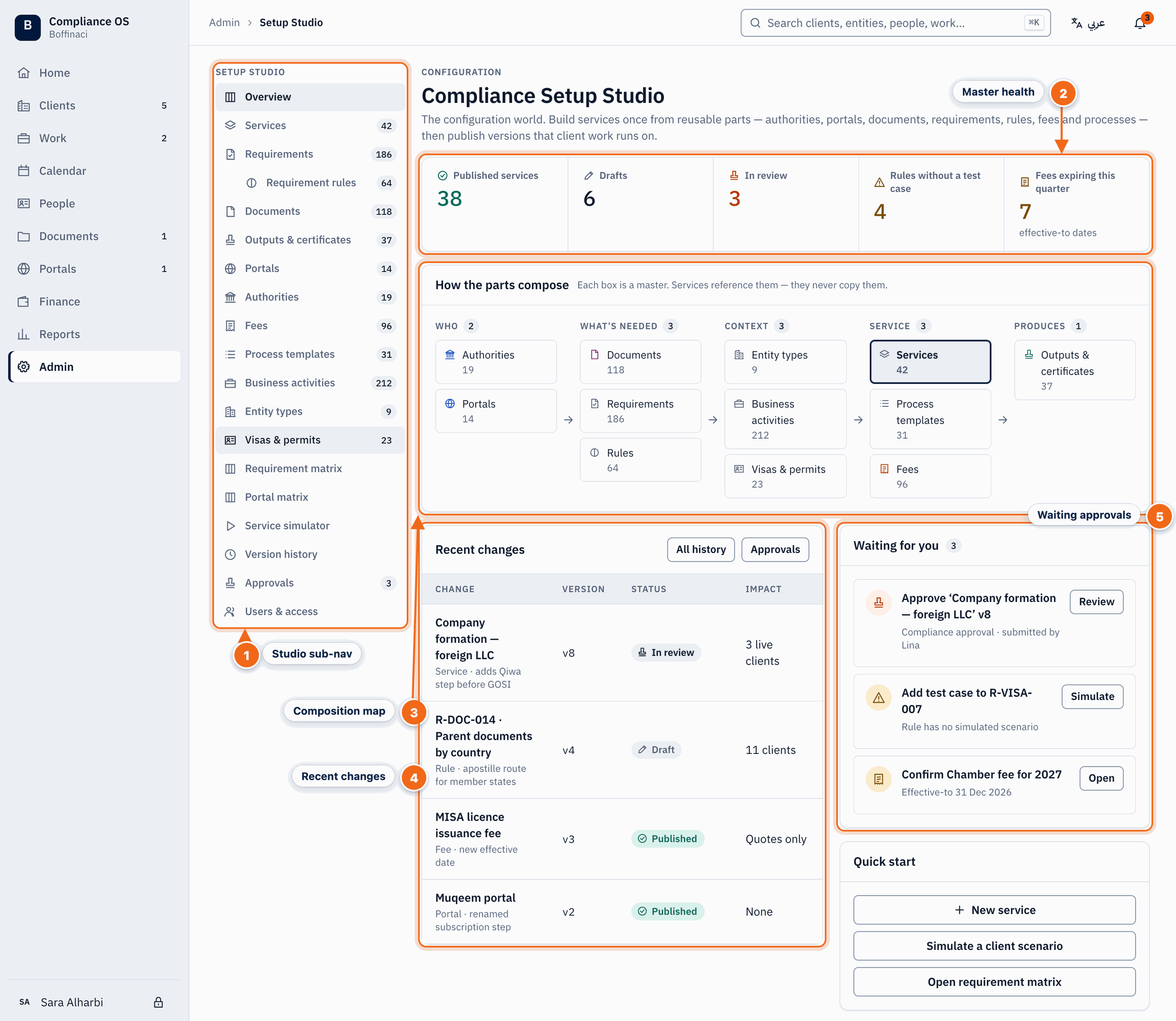
- Studio sub-nav: The Studio's own navigation: services, requirements, rules, documents, portals, fees, matrices, simulator, versions, approvals and users.
- Master health: Published services, drafts, items in review, rules without a test case and fees expiring this quarter.
- Composition map: How the masters fit together — services reference requirements, rules, documents, portals and fees.
- Recent changes: The latest changes to masters with who made them and their status.
- Waiting approvals: Changes waiting for your review or approval — remember nobody approves their own change.
2. Follow the four steps
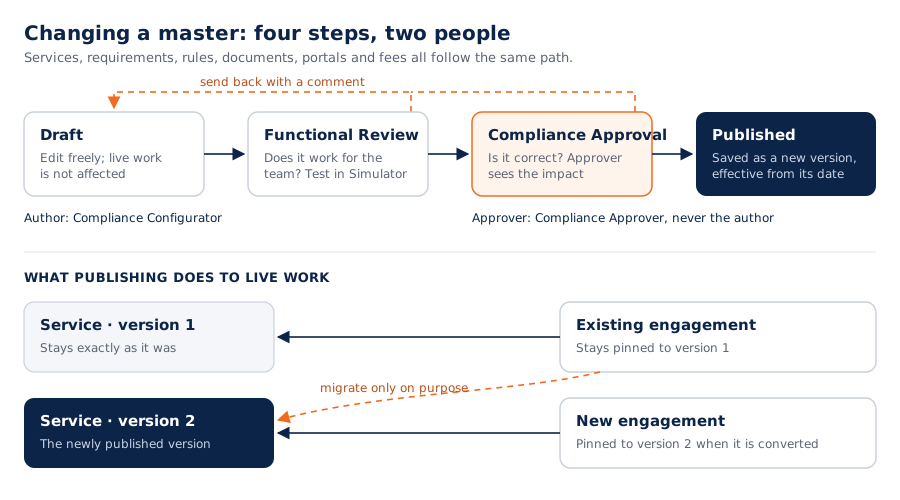
Draft → Functional Review → Compliance Approval → Published. Publishing creates a new version and never edits the old one. Nobody approves their own change.
3. Review a change
In Approvals, check the changes, the evidence and the impact on live work. Then click Approve & publish, Request changes or Reject. Approving needs a fresh sign-in.
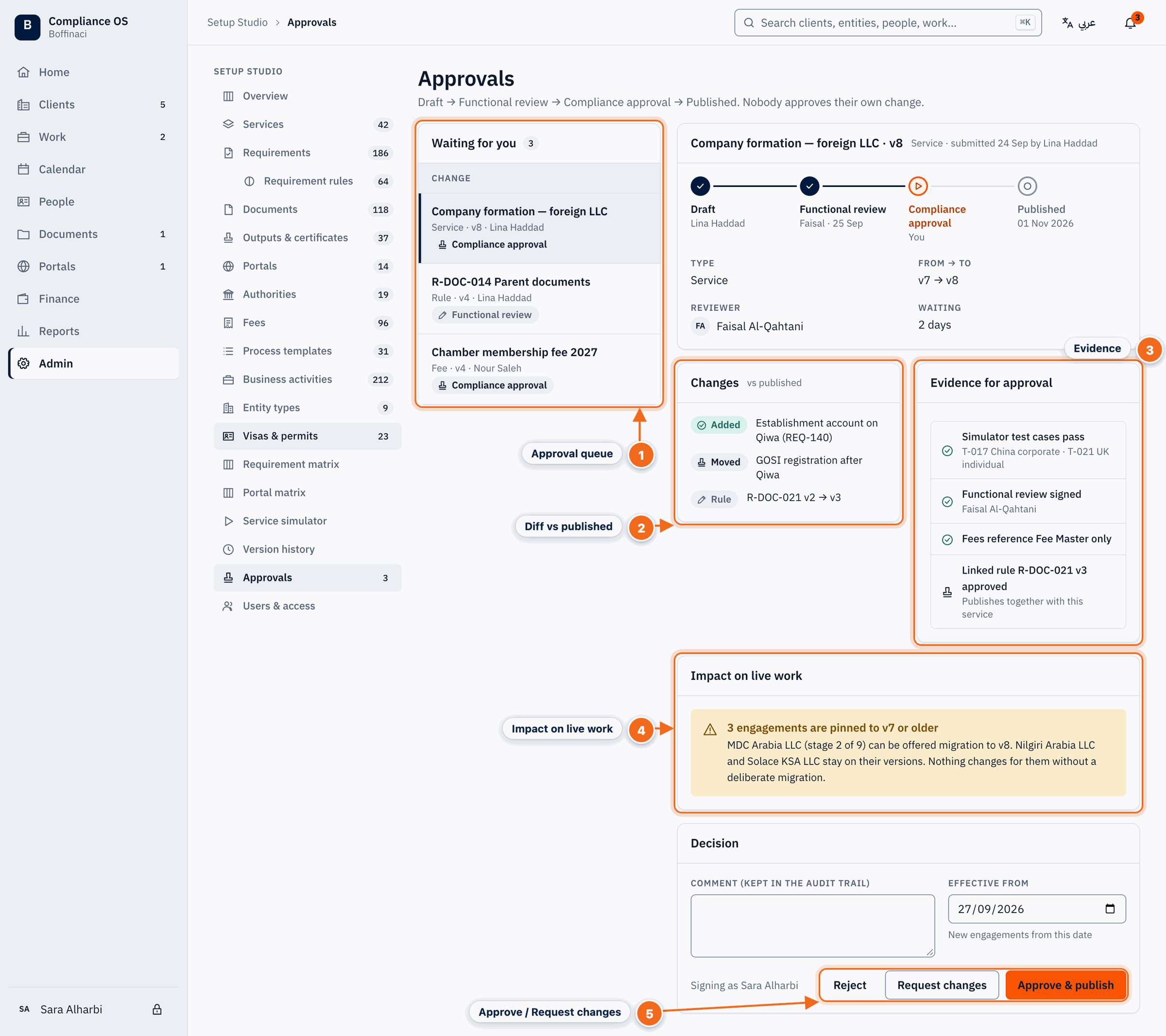
- Approval queue: Changes waiting for your review; you never see your own changes here — nobody approves their own change.
- Diff vs published: Exactly what changed compared with the published version.
- Evidence: Simulator test cases and other evidence that the change works.
- Impact on live work: Engagements pinned to older versions and what migrating them would mean — nothing changes for them without a deliberate migration.
- Approve / Request changes: Add a comment and effective date, then Approve & publish, Request changes, or Reject; approving needs a fresh sign-in.
4. Compare versions
Version history shows every version, what changed and the full audit trail. Engagements stay on their version until someone deliberately migrates them.
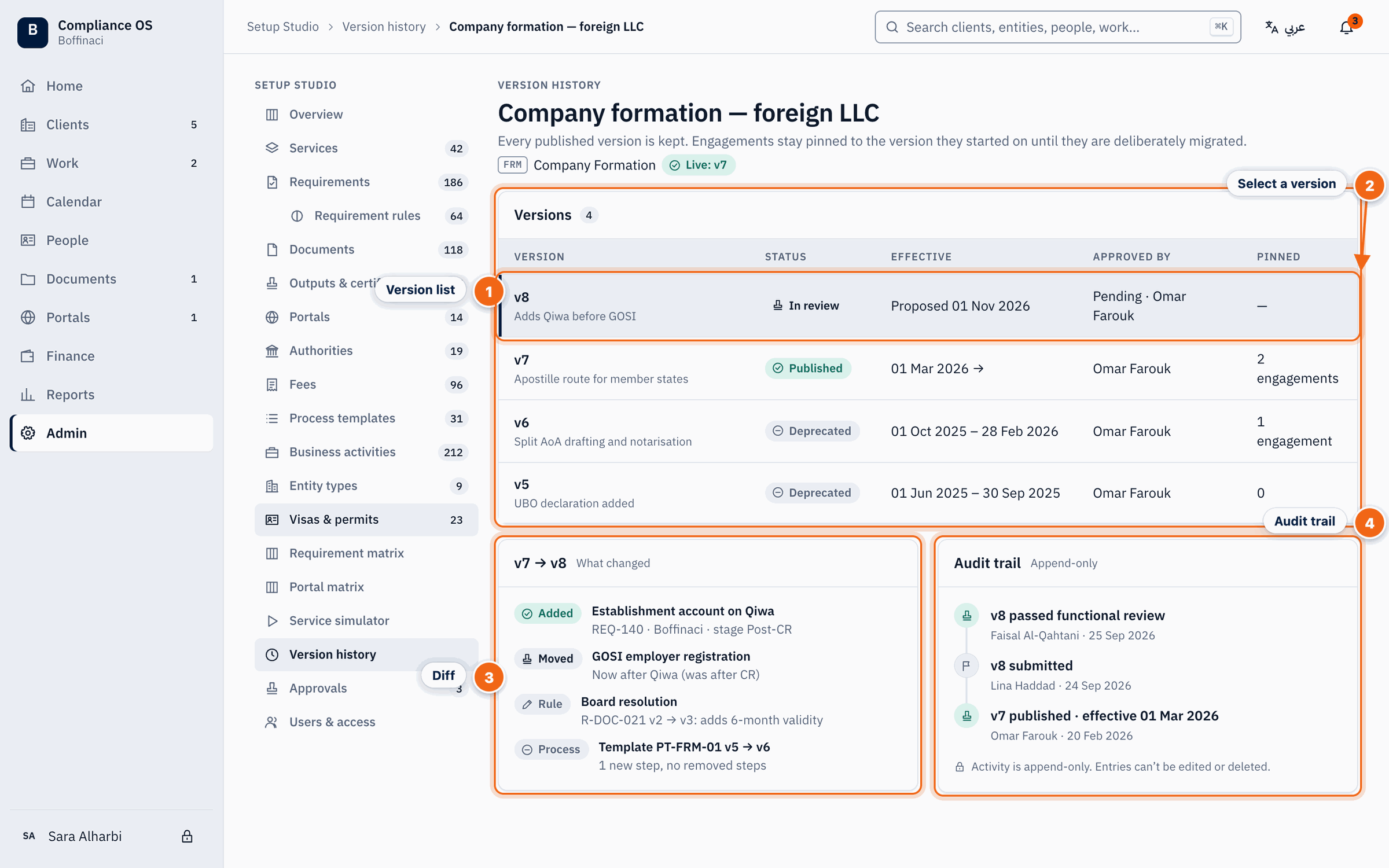
- Version list: Every version with its status, effective date, approver and how many engagements are pinned to it; published versions are never edited.
- Select a version: Click a version to compare it with the one before.
- Diff: What changed between the two versions — added, moved and changed items.
- Audit trail: The permanent history of submissions, reviews and approvals for this master.
Next: Build a service
No comments yet. Login to start a new discussion Start a new discussion