Build a service
By Compliance OS on September 29, 2026
ExpertA service is built from masters. It references requirements, documents, portals and fees, and never copies them.
Before you start: you need the Compliance Configurator role.
1. Find the service
Open Services. Each row shows its version and status. Use New service to start from scratch.
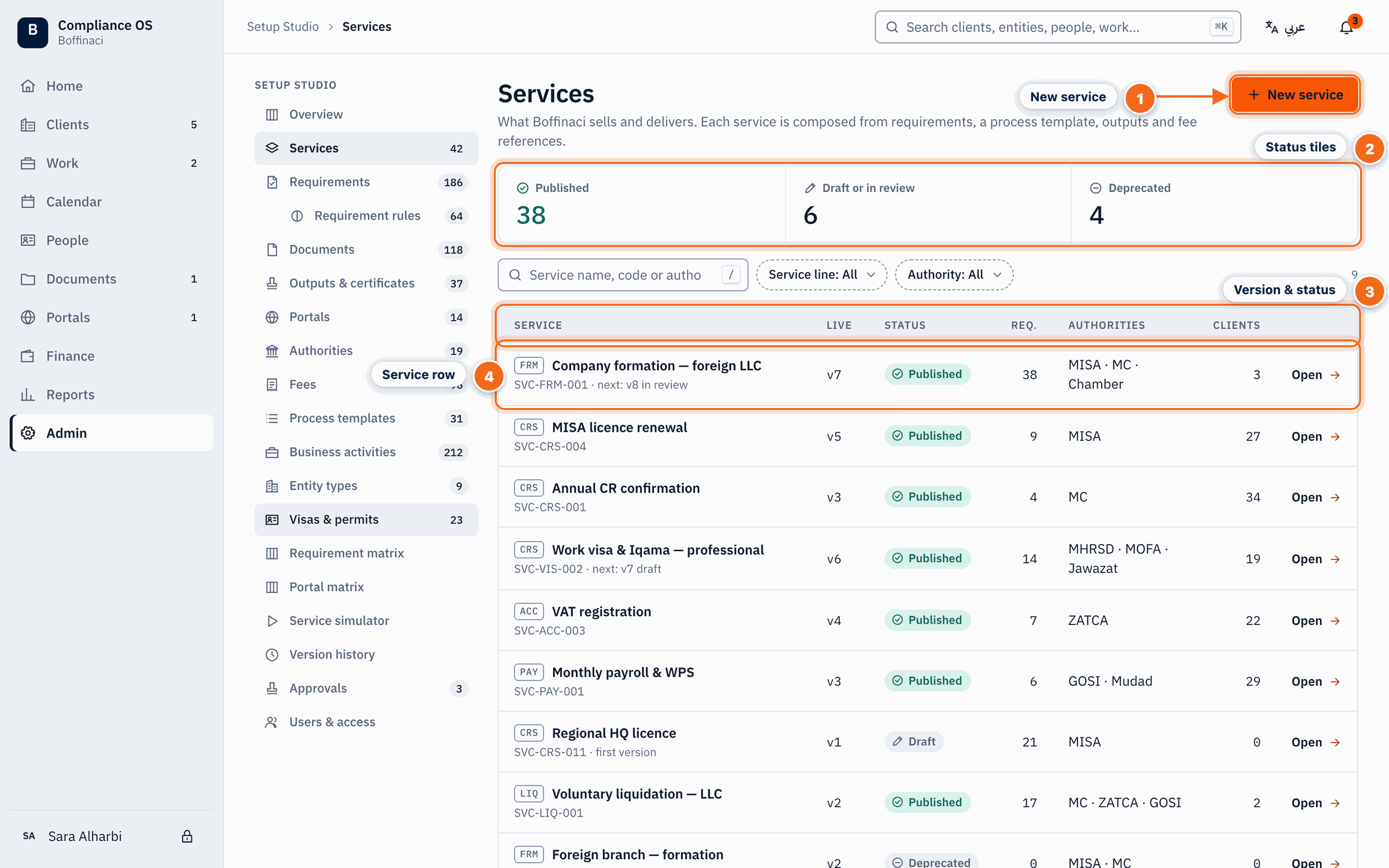
- New service: Creates a new service as a Draft.
- Status tiles: Counts of published, draft or in-review, and deprecated services; click to filter.
- Version & status: Each service shows its current version, status (Draft → Functional Review → Compliance Approval → Published) and where it is used.
- Service row: Click a service to open its Service 360.
2. Read Service 360
See the composition, the versions, where it's used and when it applies. Click Edit draft to change it; the published version stays untouched.
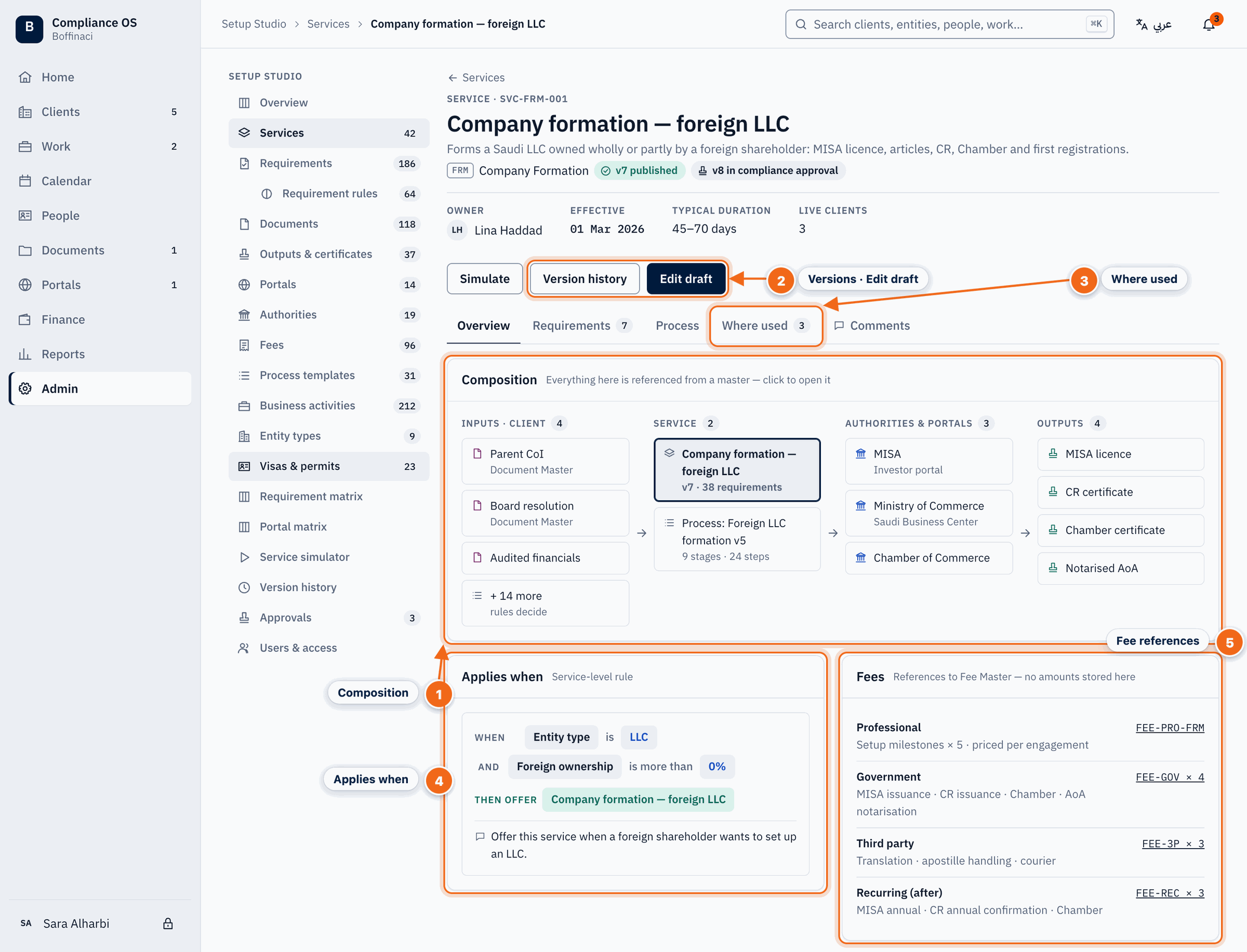
- Composition: Everything the service is built from — requirements, rules, documents, portals, outputs and fee items — all referenced from masters, never copied.
- Versions · Edit draft: Version history shows every published version, what changed and who approved it; Edit draft opens the builder on a new draft while the published version stays untouched.
- Where used: Lists the customers and engagements pinned to each version of this service.
- Applies when: The service-level rule that decides when this service is offered.
- Fee references: Fees are references to Fee Master items with effective dates — no amounts are stored on the service.
3. Edit the draft
Work through the sections. Search the library and add existing requirements instead of retyping them.
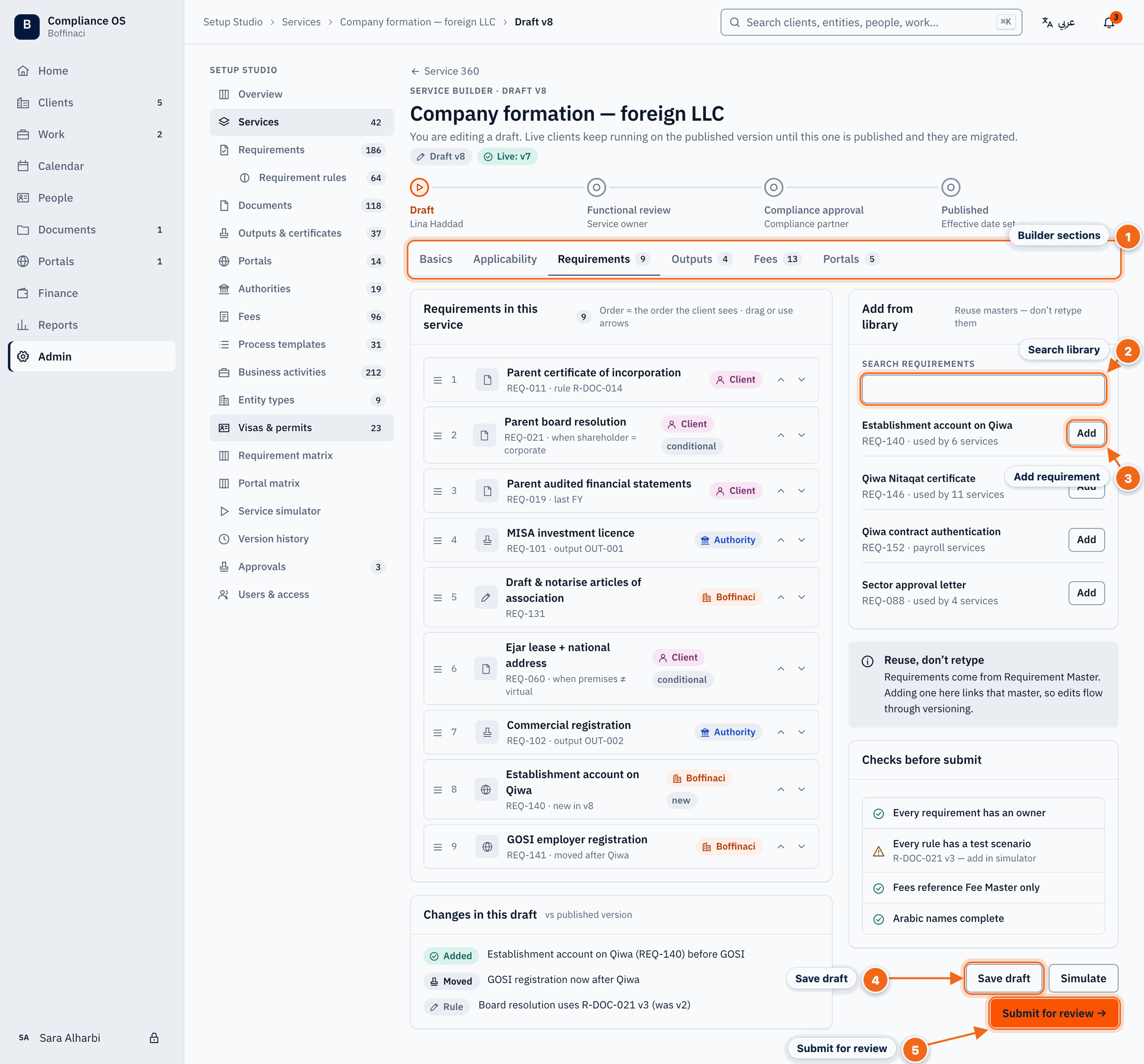
- Builder sections: Work through Basics, Applicability, Requirements, Outputs, Fees and Portals.
- Search library: Search the requirement library — reuse existing masters instead of retyping them.
- Add requirement: Adds the requirement to this service; drag or use the arrows to set its order.
- Save draft: Saves your draft without sending it for review.
- Submit for review: Sends the draft to Functional Review, then Compliance Approval; someone else must approve it.
4. Test and submit
Click Simulate to check the result, Save draft to keep your work, then Submit for review.
Next: Rules and the simulator
Was this article helpful?
No comments yet. Login to start a new discussion Start a new discussion