Rules and the simulator
By Compliance OS on September 29, 2026
ExpertRules decide which requirements apply to a client. Test every rule before you submit it.
Before you start: you need the Compliance Configurator role.
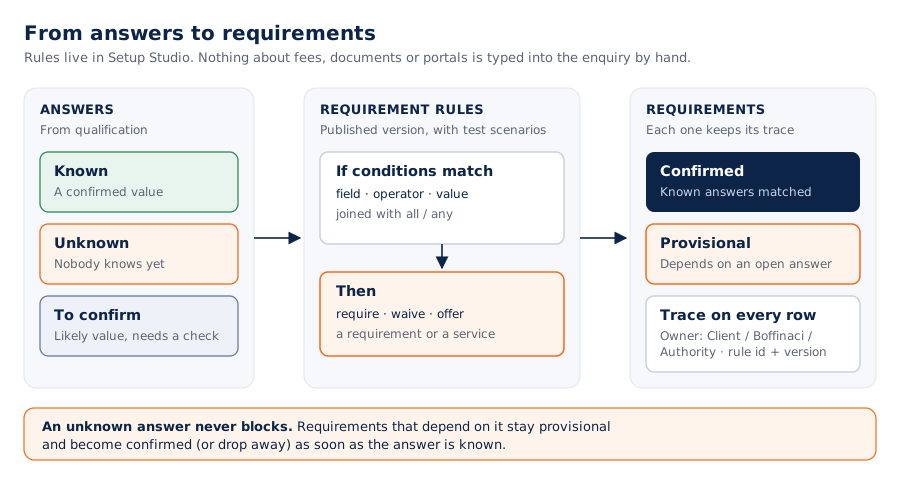
1. Know the requirements
Every requirement has a type and an owner: Client, Boffinaci or Authority.
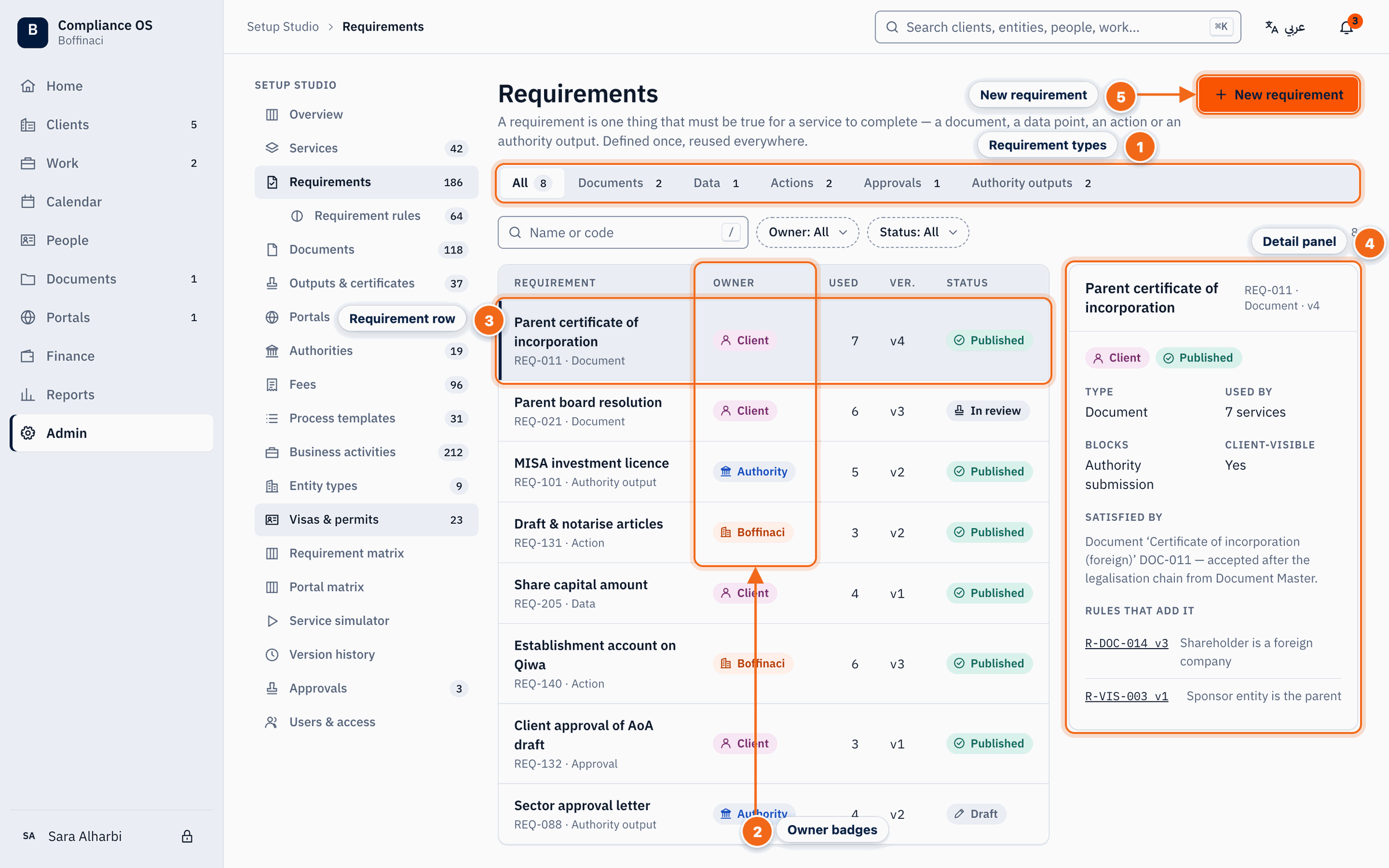
- Requirement types: Filter by type — documents, data, actions, approvals and authority outputs.
- Owner badges: Every requirement has an owner — Client, Boffinaci or Authority — shown as a coloured badge.
- Requirement row: Click a requirement to see its details, the rules that generate it and where it is used.
- Detail panel: The selected requirement's code, type, owner, evidence and the services and rules that use it.
- New requirement: Creates a new requirement master as a Draft.
2. Build the rule
Add conditions (WHEN … AND …) and what happens (THEN). Values come from masters. Check the plain-language sentence and the test scenario.
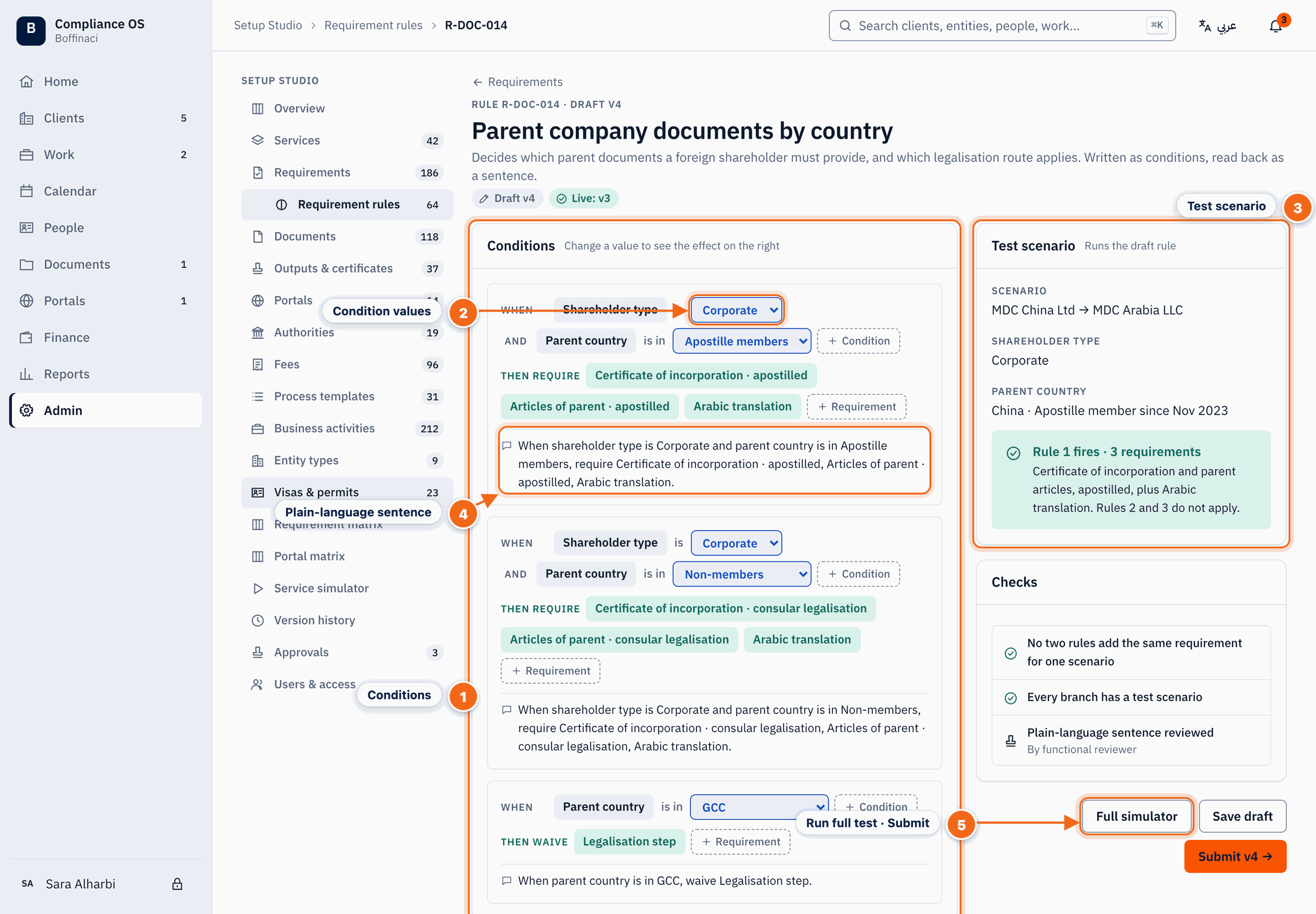
- Conditions: Build the rule as WHEN … AND … THEN add requirement; values come from masters, not free text.
- Condition values: Change a condition value to see its effect on the test scenario immediately.
- Test scenario: Runs the draft rule against a sample client and shows which requirements fire.
- Plain-language sentence: Each branch is read back as a plain sentence so reviewers can check the logic without reading conditions.
- Run full test · Submit: Full simulator runs complete scenarios; Save draft keeps your work and Submit sends the new version for review.
3. Run the simulator
Describe a client and compare the published result with your drafts. Each result shows the rule and version that produced it. Save useful runs as test cases.
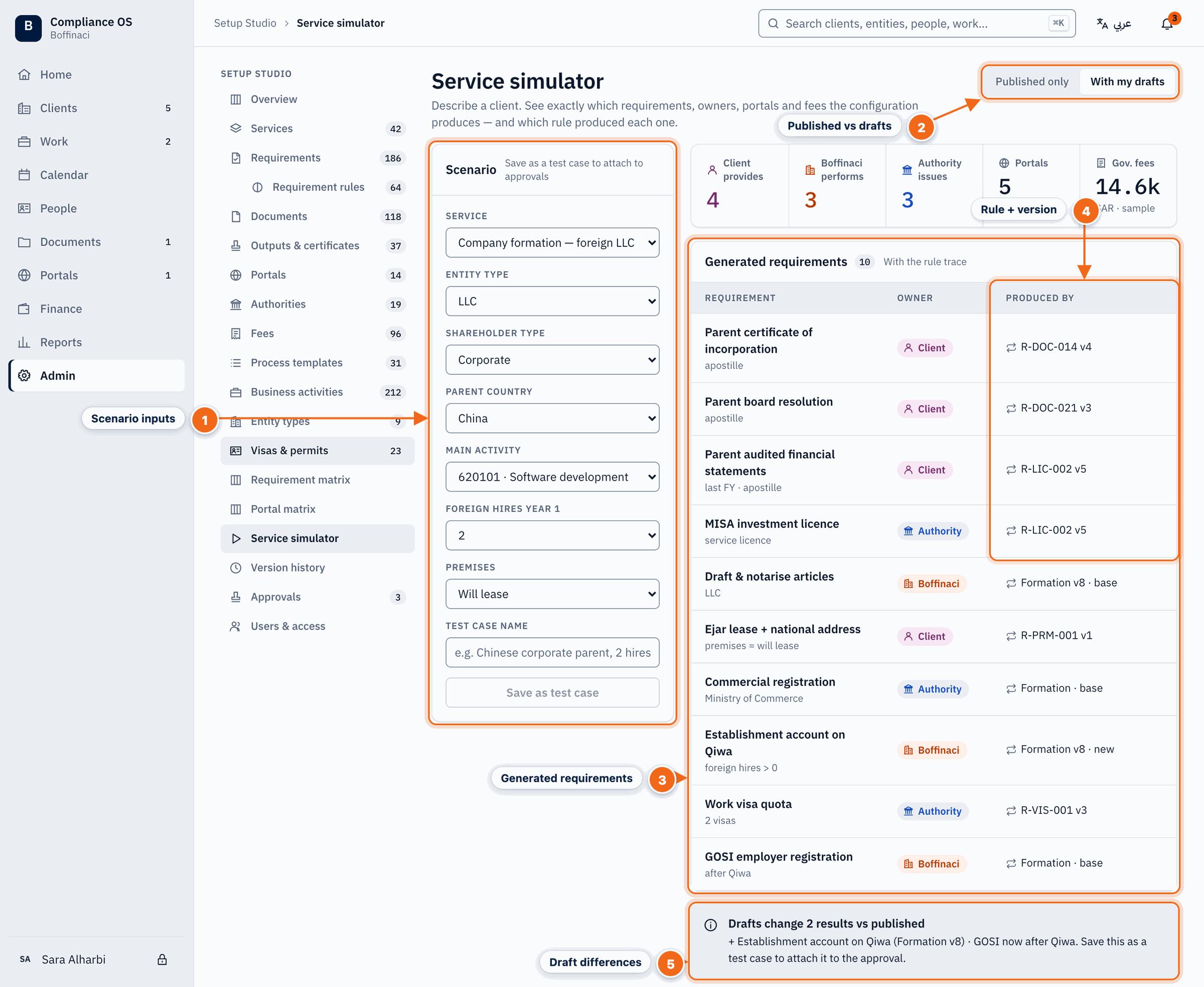
- Scenario inputs: Describe a client — service, legal form, shareholder, parent country, activities, hires, premises — to see what would be generated.
- Published vs drafts: Run the scenario against published masters only, or include your drafts to see what your change would do.
- Generated requirements: The requirements this scenario produces, each with its owner.
- Rule + version: The rule and version that produced each requirement — full traceability.
- Draft differences: Shows how your drafts change the result compared with the published version.
4. Submit
Save the draft, then submit the new version for review.
Was this article helpful?
No comments yet. Login to start a new discussion Start a new discussion