Sign in and re-confirm it's you
By Compliance OS on September 29, 2026
BeginnerYou sign in once with your work account. For a few sensitive actions, Compliance OS asks you to confirm it's you again.
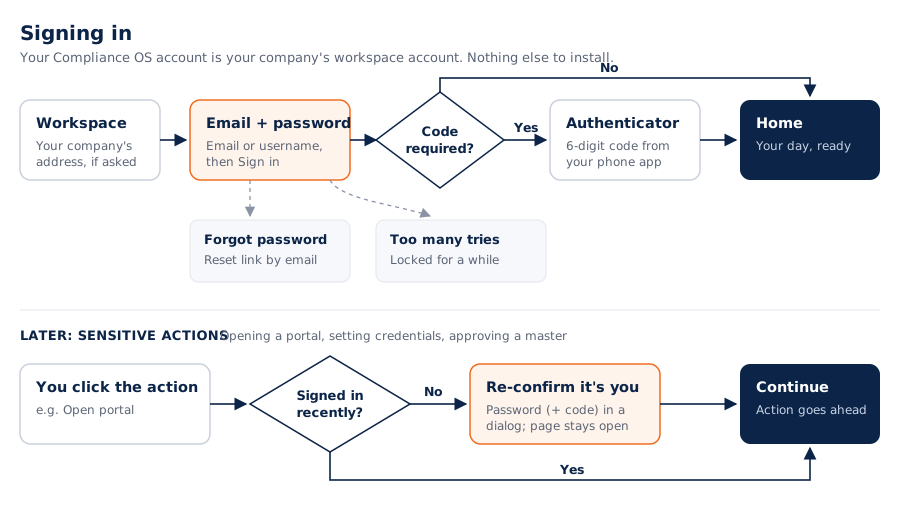
1. Choose your workspace
If you're asked for a workspace, type your company's workspace name. Your browser remembers it.
2. Enter your email and password
Type your work email (or username) and password, then click Sign in.
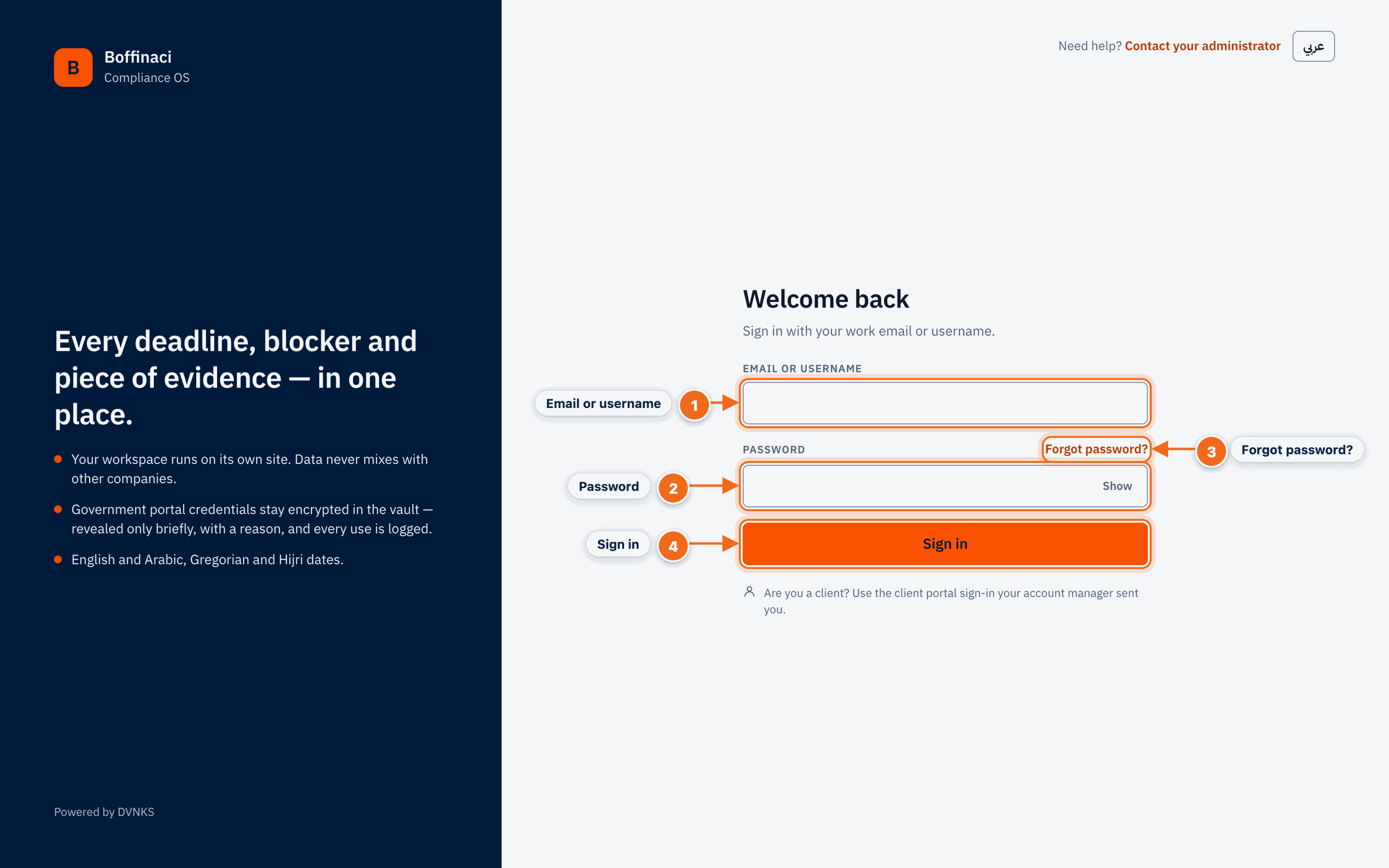
- Email or username: Type your work email address or username.
- Password: Enter your password; use Show to check what you typed.
- Forgot password?: Opens the reset flow, which emails you a reset link without revealing whether the account exists.
- Sign in: Submits your credentials; if your account uses an authenticator app you are asked for a code next.
3. Enter your authenticator code
If your account uses two-step verification, open your authenticator app and type the 6-digit code.
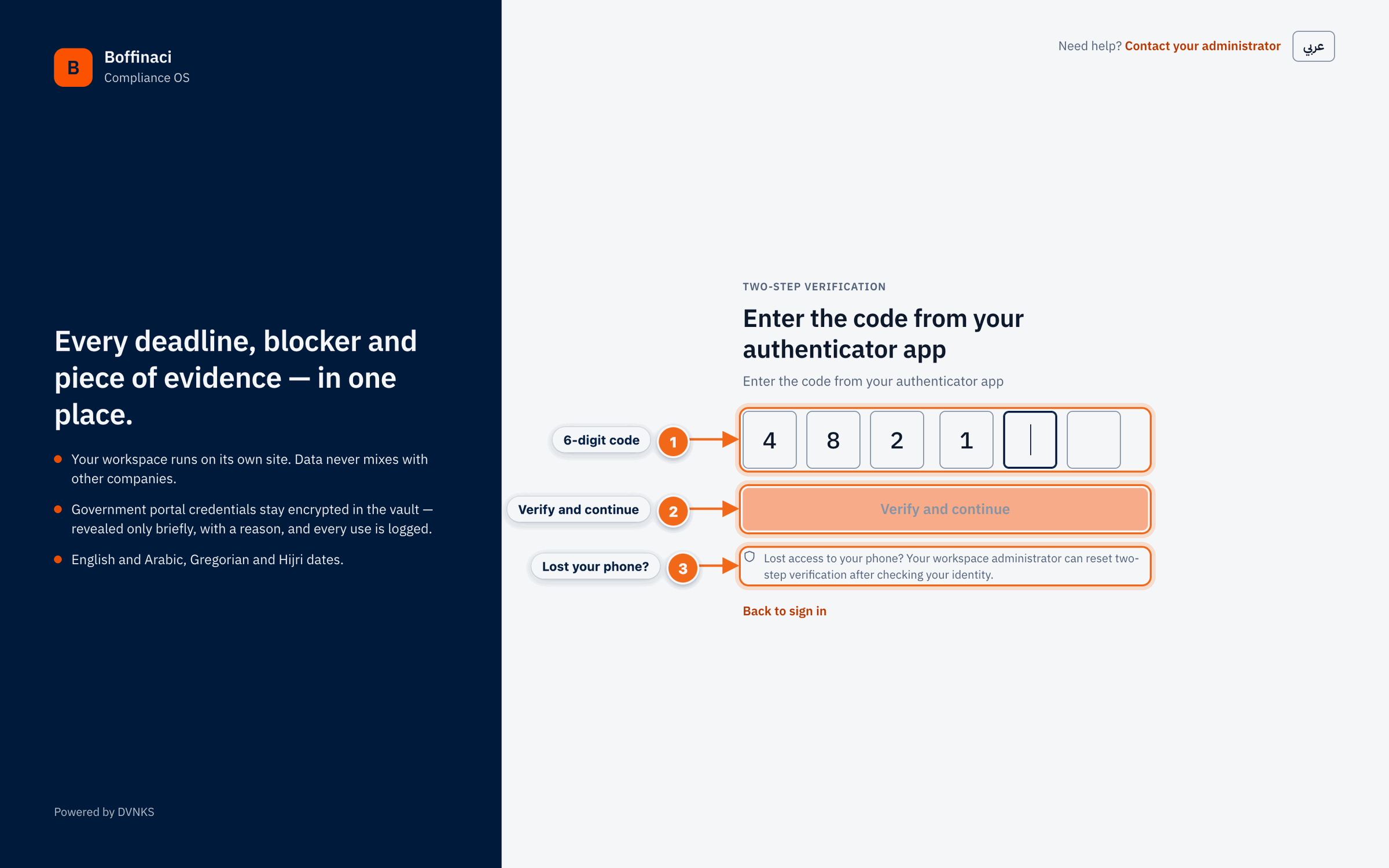
- 6-digit code: Type the six-digit code from your authenticator app; each digit moves to the next box, and you can paste the whole code.
- Verify and continue: Checks the code and signs you in; it is enabled once all six digits are entered.
- Lost your phone?: If you lost your authenticator, ask your workspace administrator to reset two-step verification.
4. Forgot your password or locked out
Click Forgot password? and follow the emailed link. After too many wrong passwords your account is locked for a short while: wait and try again, or ask your administrator.
5. When you're asked to confirm it's you
Opening a government portal, saving portal credentials and approving a Setup Studio change need a fresh sign-in. If yours isn't recent, a dialog asks for your password again. You stay on the same page, and the same dialog appears if your session expires.
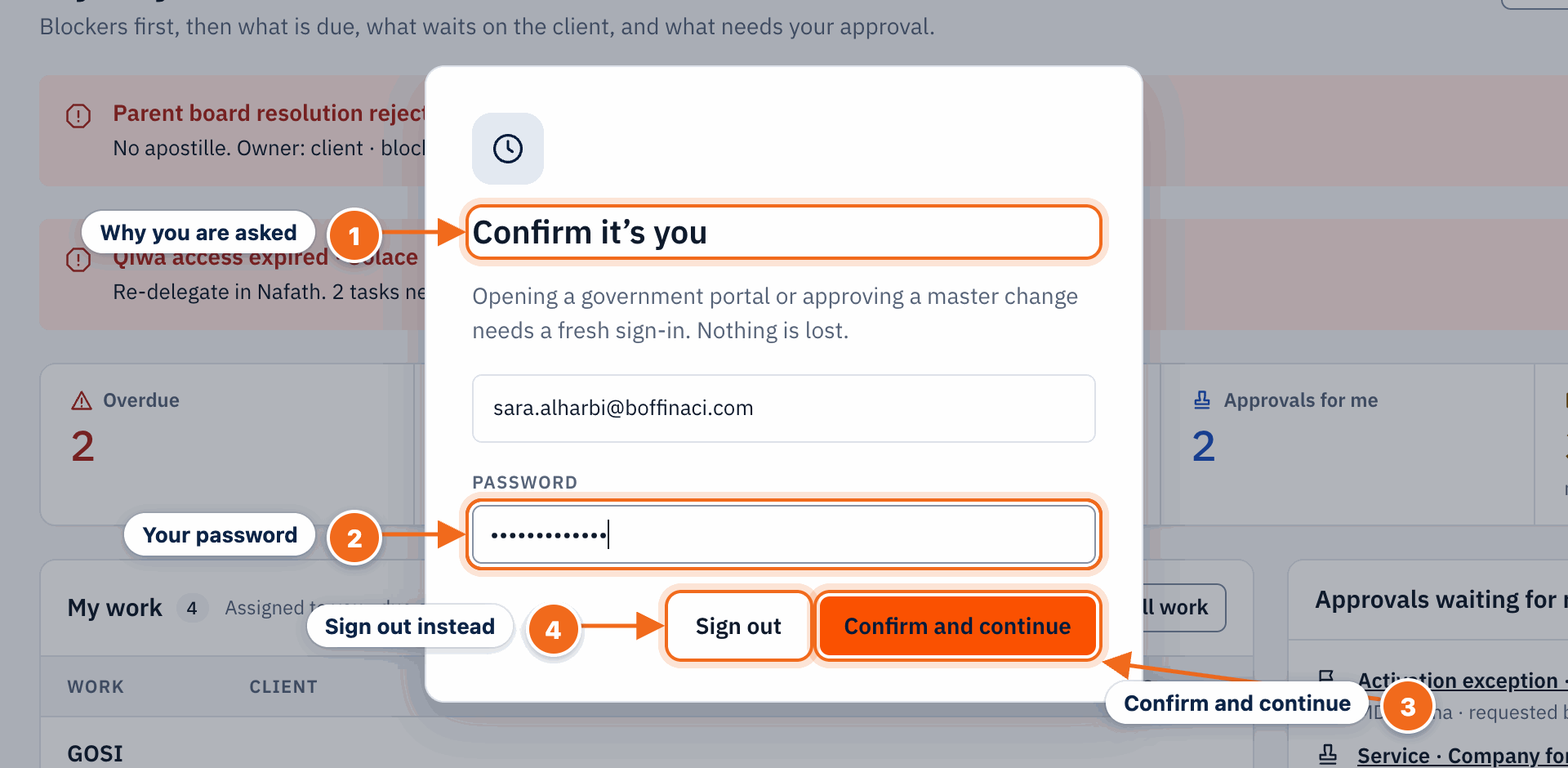
- Why you are asked: Before opening a government portal or approving a master change (or when your session expires) you are asked to confirm your password.
- Your password: Re-enter your own Compliance OS password; the dialog shows the account and workspace you are confirming.
- Confirm and continue: Confirms your identity and continues the action you started, without losing your place.
- Sign out instead: Signs you out if this is not your session.
Next: Find your way around
No comments yet. Login to start a new discussion Start a new discussion