Find your way around
By Compliance OS on September 29, 2026
BeginnerEvery screen has the same frame: navigation on the side, a top bar, and the page in the middle.
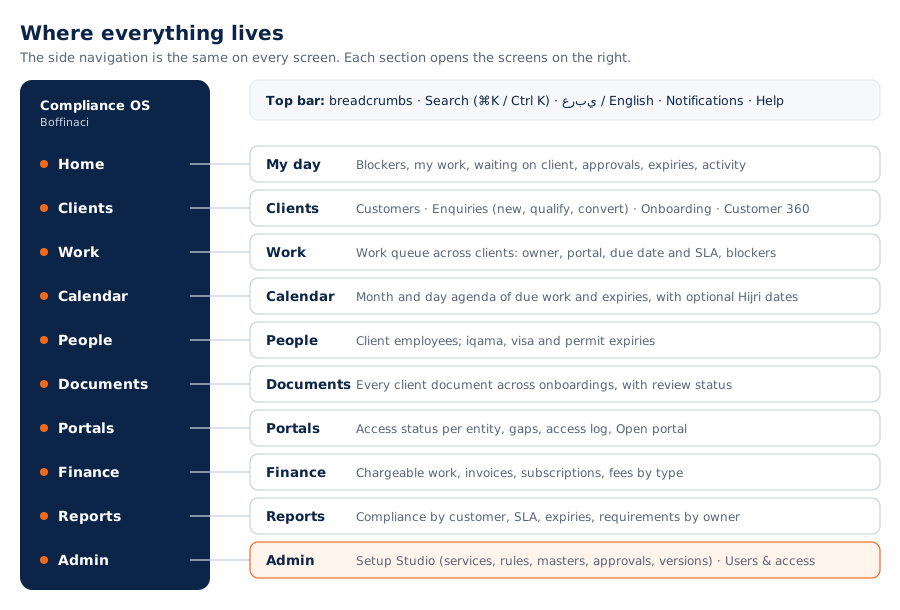
1. Use the side navigation
Click a section to open it. A number next to a section shows items that need attention.
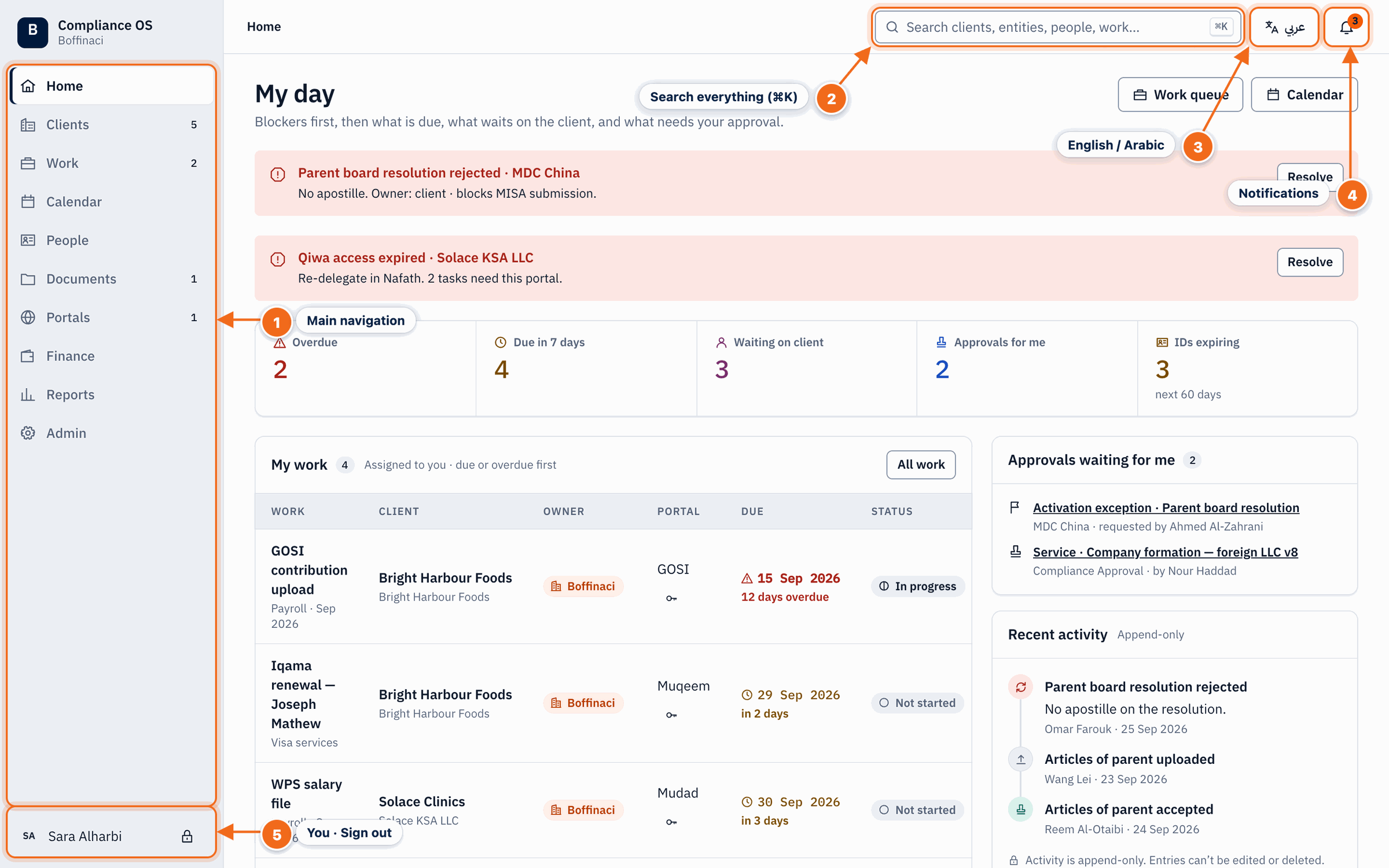
- Main navigation: The side navigation takes you to Home, Clients, Work, Calendar, People, Documents, Portals, Finance, Reports and Admin; badges show counts that need attention.
- Search everything (⌘K): Click the search box or press ⌘K / Ctrl K to find customers, enquiries, entities, people and documents.
- English / Arabic: Switches the interface between English and Arabic (right-to-left).
- Notifications: The bell shows unread notifications; click it to open the list.
- You · Sign out: Shows who is signed in; the lock button signs you out.
2. Search anything
Press ⌘K (Mac) or Ctrl K (Windows), or click the search box. Type a name, ID or keyword and press Enter.
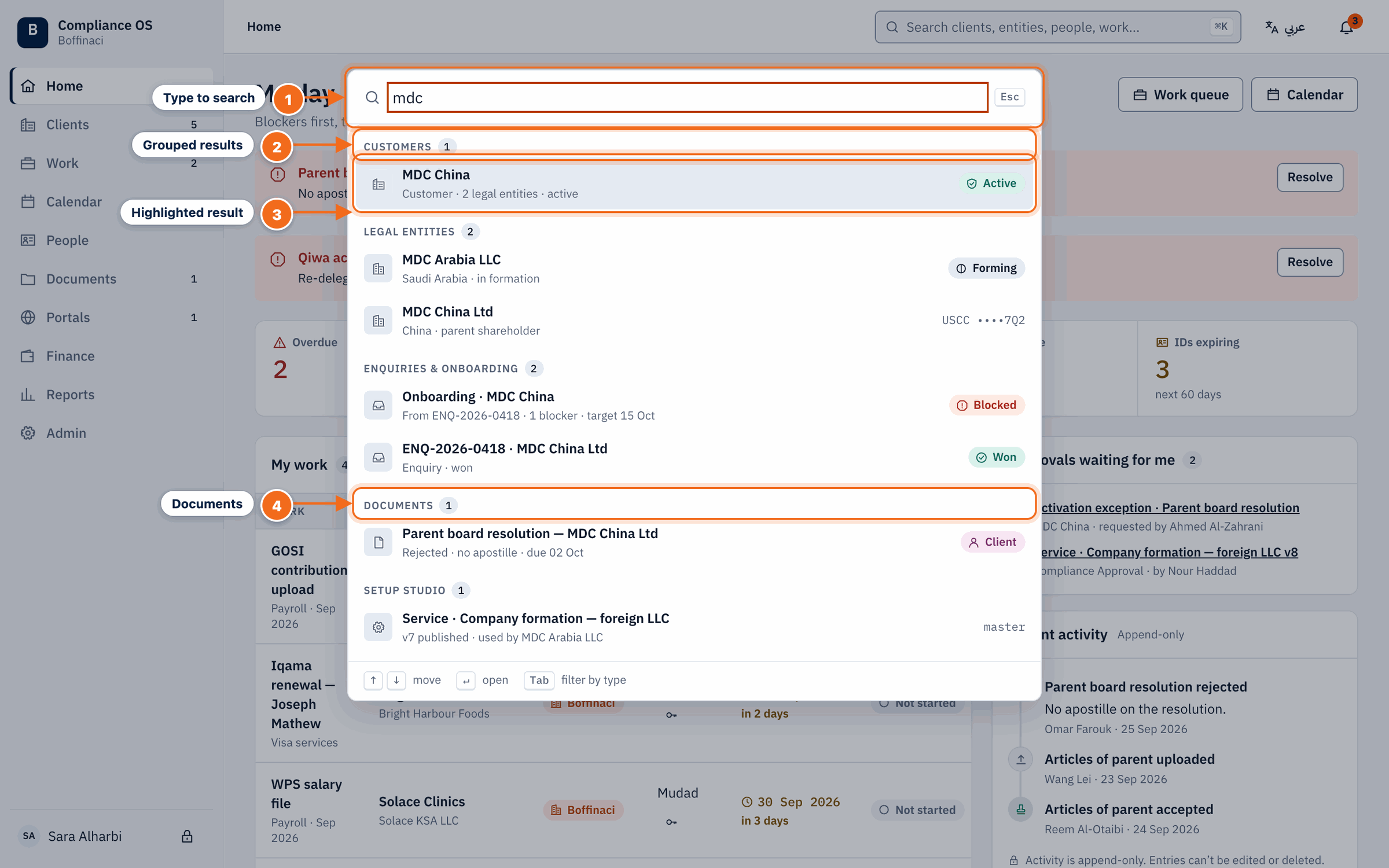
- Type to search: Type a name, ID or keyword; results update as you type. Use ↑/↓ and Enter to open, Esc to close.
- Grouped results: Results are grouped by type — customers, legal entities, enquiries & onboarding, documents and Setup Studio records.
- Highlighted result: The highlighted result opens when you press Enter; status badges show its current state.
- Documents: Matching client documents open directly in the onboarding document collection.
3. Check notifications
The bell shows how many notifications you haven't read. Click one to open the record it's about.
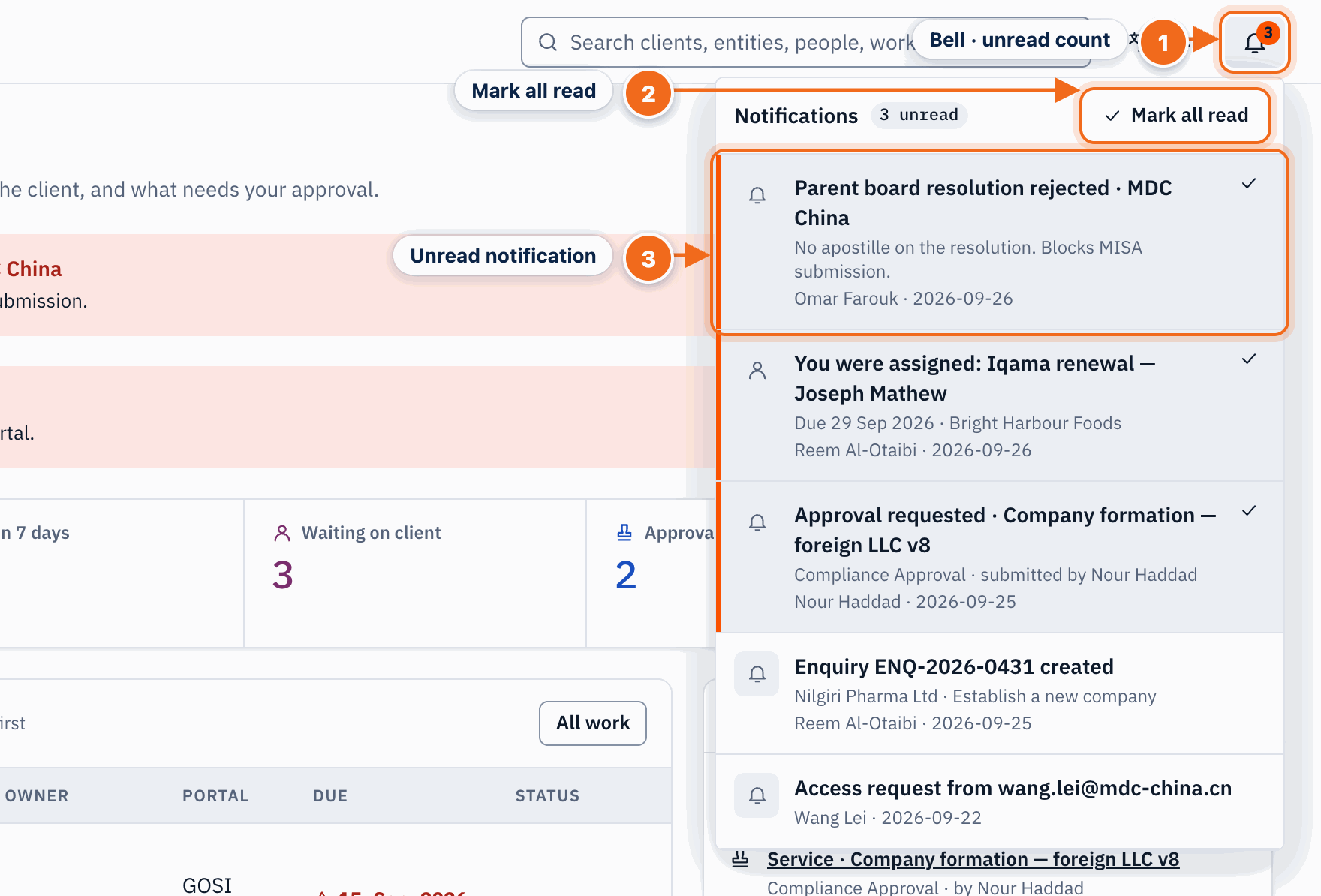
- Bell · unread count: The number on the bell is how many notifications you have not read; click the bell to open or close the list.
- Mark all read: Clears the unread count for every notification at once.
- Unread notification: Unread items are highlighted; click one to open the record it is about, or use its tick button to mark just that one as read.
4. Open help
The Help button next to the bell opens this help centre in a new tab. The footer at the bottom of every screen shows © DVNKS and links to dvnks.com.
5. Switch to Arabic
Click عربي in the top bar. The layout mirrors right to left; click English to switch back. On the Calendar you can also show Hijri dates.
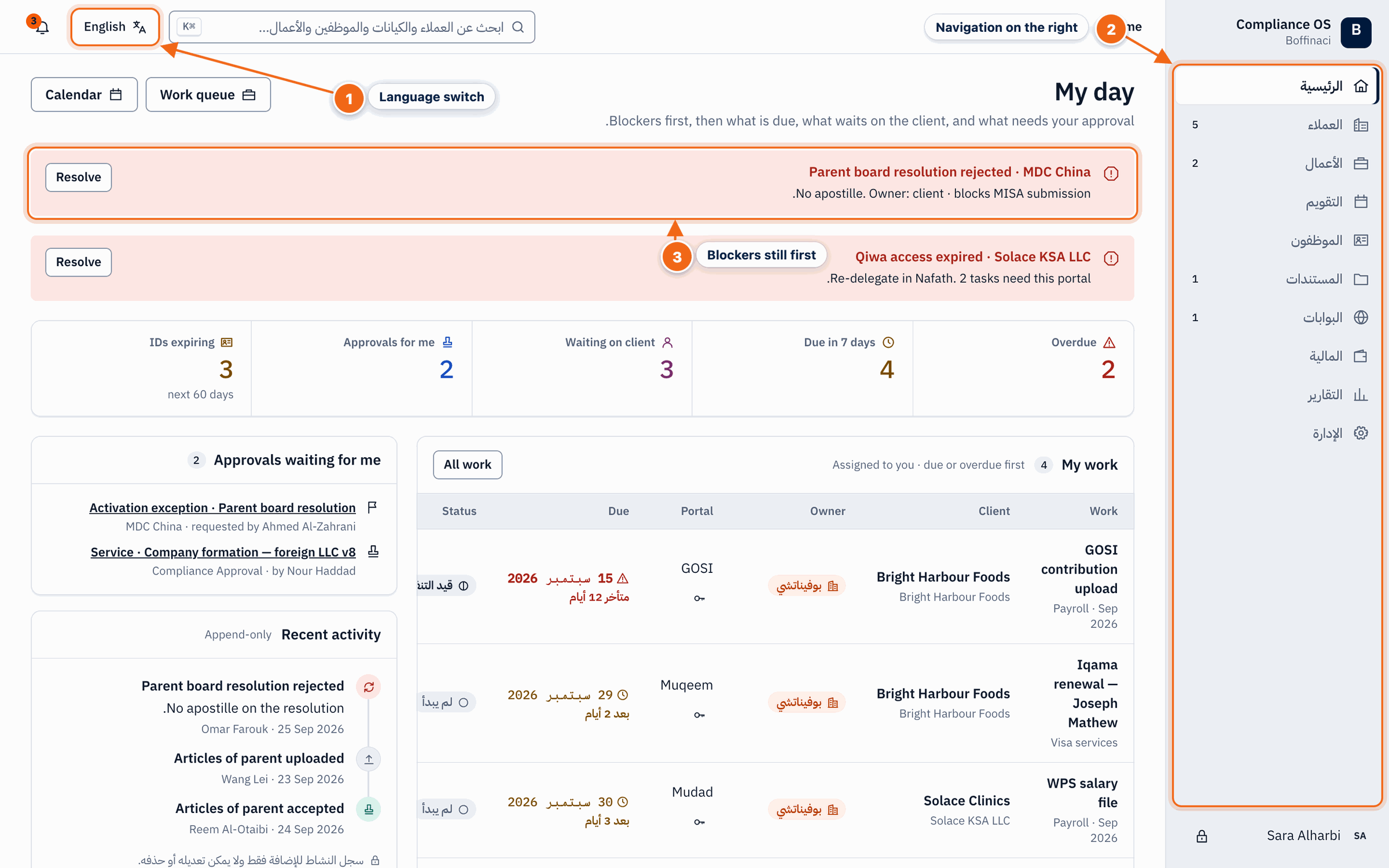
- Language switch: Click the language button in the top bar to switch between English and Arabic; click “English” to switch back.
- Navigation on the right: In Arabic the whole layout mirrors right-to-left: the side navigation moves to the right and the interface chrome is translated (record names and some page text stay as entered).
- Blockers still first: Content, dates and blockers stay in the same order, read right-to-left.
Next: Your day on Home
Was this article helpful?
No comments yet. Login to start a new discussion Start a new discussion