Work on a task
By Compliance OS on September 29, 2026
BeginnerEach task has its own page with everything you need to finish it.
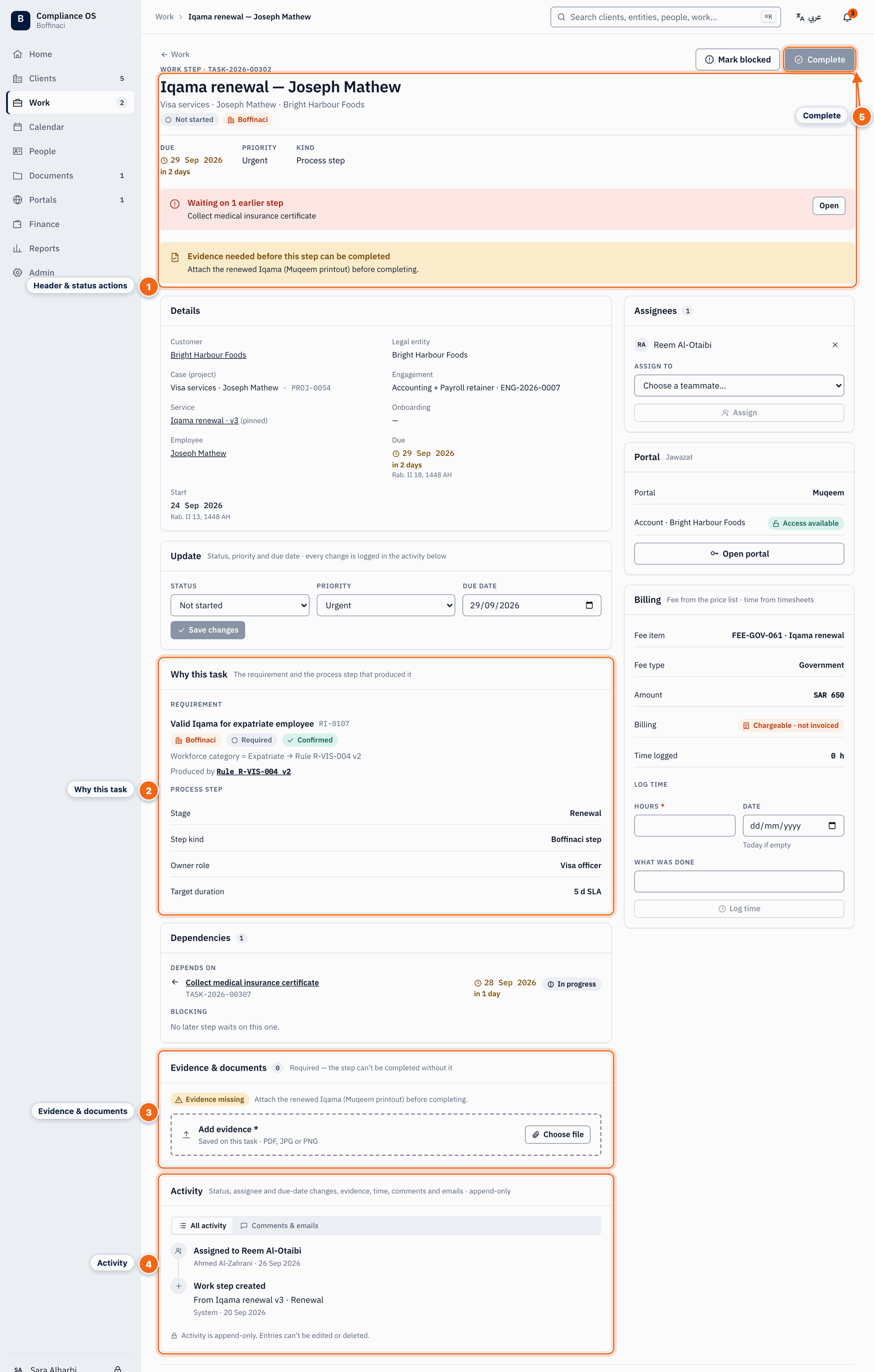
- Header & status actions: Status, priority, due date, owner and assignees, with links to the customer, legal entity and project. Change status, assign, set the due date or priority here.
- Why this task: The requirement this task satisfies, the rule and version that created it, and the template step it comes from.
- Evidence: Upload files or link documents as evidence. A step that needs evidence can't be completed without it.
- Activity: Everything that happened on the task, plus comments and emails with the client.
- Complete: Completes the task once its evidence is in place; the next steps that were waiting on it can start.
1. Check the header
Status, priority, due date, owner and assignees, with links to the customer, legal entity and project.
2. Read why it exists
Why this task shows the requirement it satisfies, the rule and version behind it, and its template step. Dependencies shows what it waits on and what waits on it.
3. Add evidence
Click Add evidence to upload files or link documents. A step that needs evidence can't be completed without it. Client approvals don't need evidence.
4. Use the portal
Click Open portal to use the task's government portal. You give a reason, and the access is logged.
5. Log time and talk
Use Log time for billable work. Activity shows all activity, plus comments and emails.
6. Update or complete
Change the status, assign, due date or priority. If you're stuck, use Mark blocked and say what's blocking it. When you're done, click Complete.
Next: Calendar
No comments yet. Login to start a new discussion Start a new discussion