Calendar
By Compliance OS on September 29, 2026
BeginnerThe calendar shows due work, document deadlines, expiries and renewals.
1. Browse the month
Filter by item type and tick Show Hijri for Umm al-Qura dates. Click a day to open it.
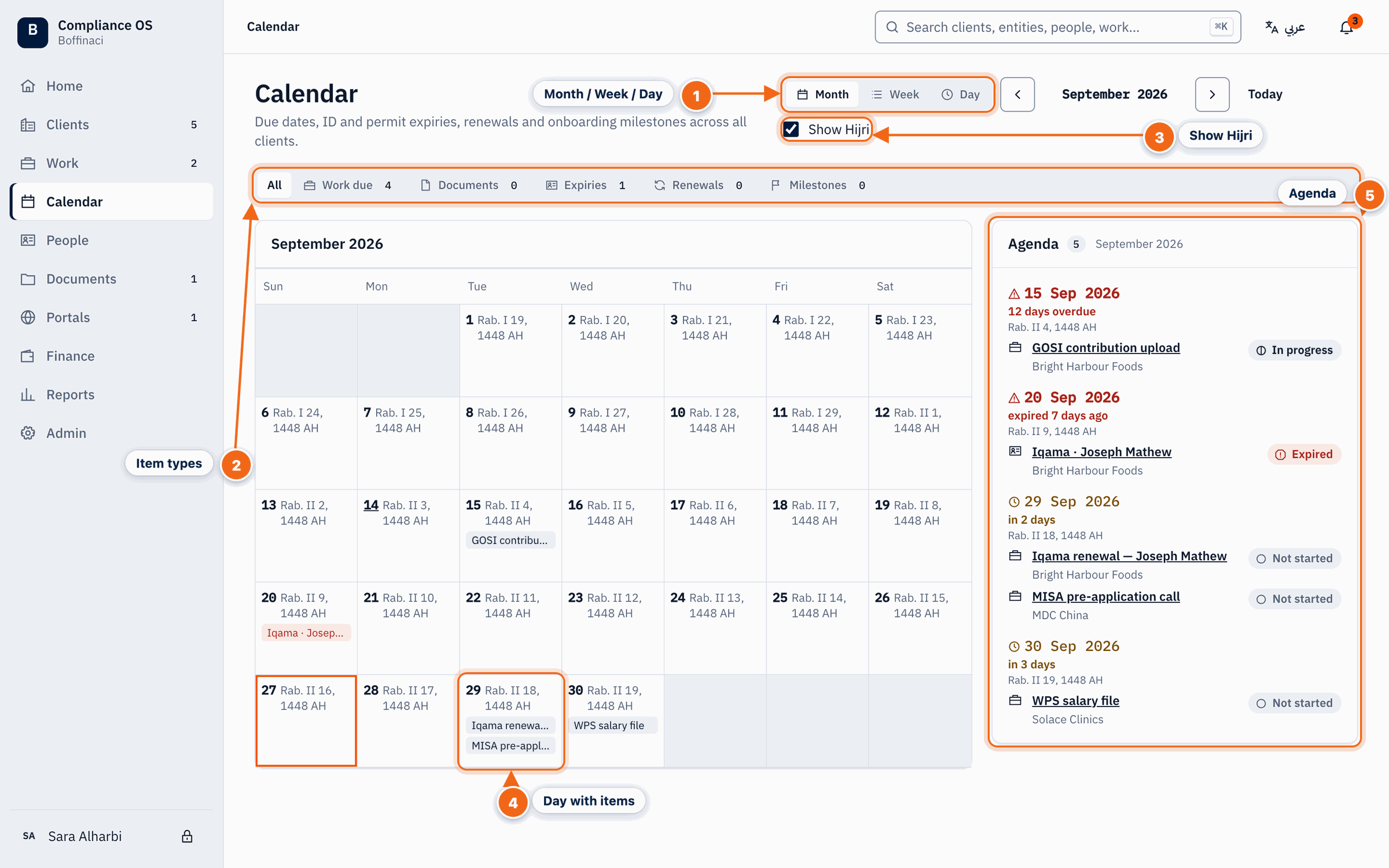
- Month / Week / Day: Switch between month, week and day views; the arrows move to the previous or next period and Today jumps back.
- Item types: Filter the calendar to work due, documents, expiries, renewals or milestones.
- Show Hijri: Adds the Umm al-Qura (Hijri) date beside every Gregorian date.
- Day with items: Days with deadlines show them in the cell; click a day to open it in day view.
- Agenda: The month's items as a list, overdue first.
2. Plan the day
Day view lists all-day deadlines first, then timed items. Click an item to open it.
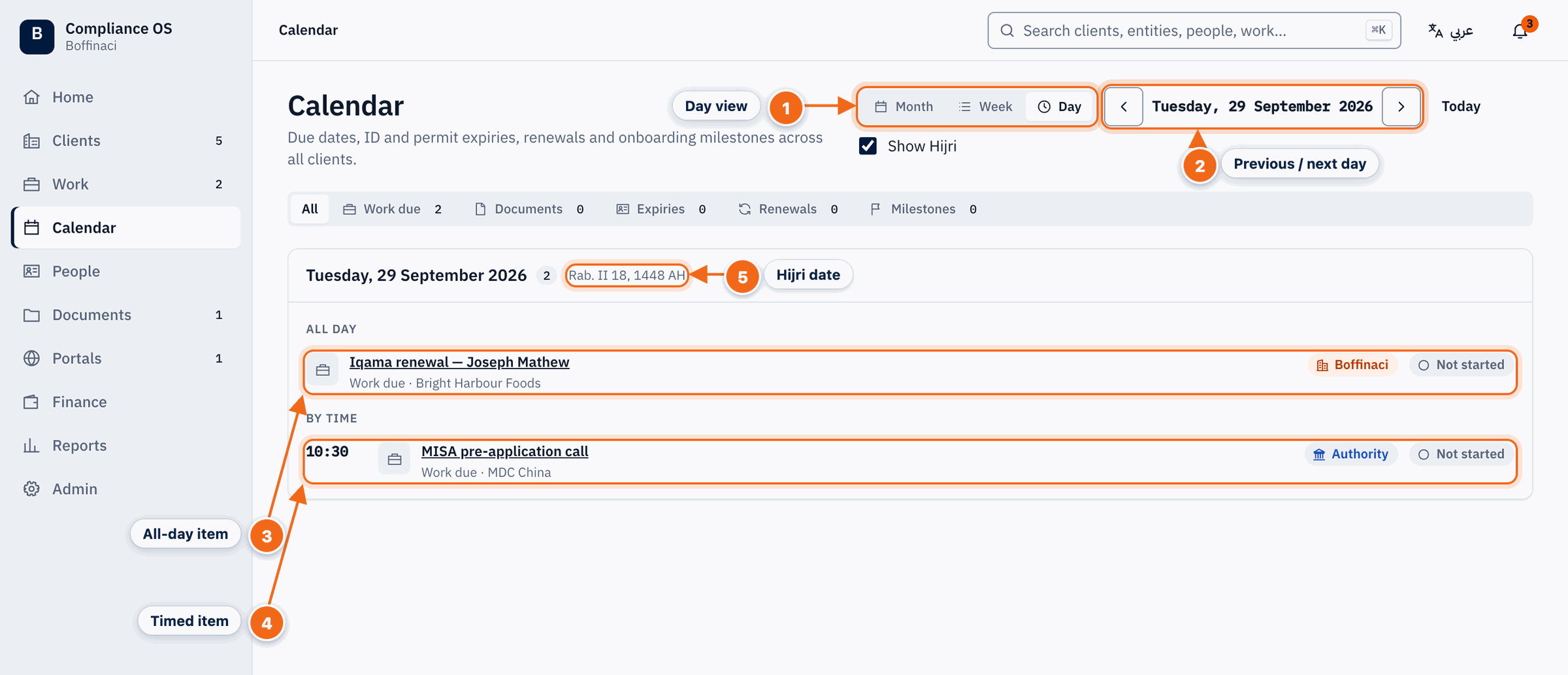
- Day view: Day view lists everything due on one date; switch back to Month or Week at any time.
- Previous / next day: Step to the previous or next day; Today jumps back to the current date.
- All-day item: Deadlines without a time appear under All day, with owner and status.
- Timed item: Items with a time (calls, appointments) are listed in time order below.
- Hijri date: With Show Hijri ticked, the Umm al-Qura date is shown next to the Gregorian one.
Next: People and ID expiries
Was this article helpful?
No comments yet. Login to start a new discussion Start a new discussion