Portal credentials and opening a portal
By Compliance OS on September 29, 2026
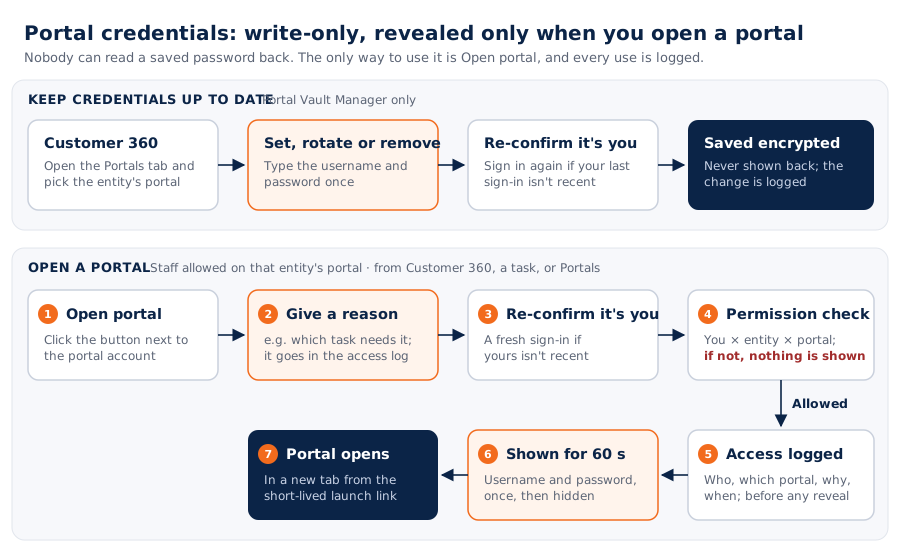
IntermediateEach legal entity has its own logins for government portals. Nobody can read a saved password back. You can only use it through Open portal, and every use is logged.
Before you start: saving credentials needs the Portal Vault Manager role. To open a portal, you must be allowed on that portal.
1. Find the portal account
Open the customer's Portals tab. Each row shows the access status, never the password.
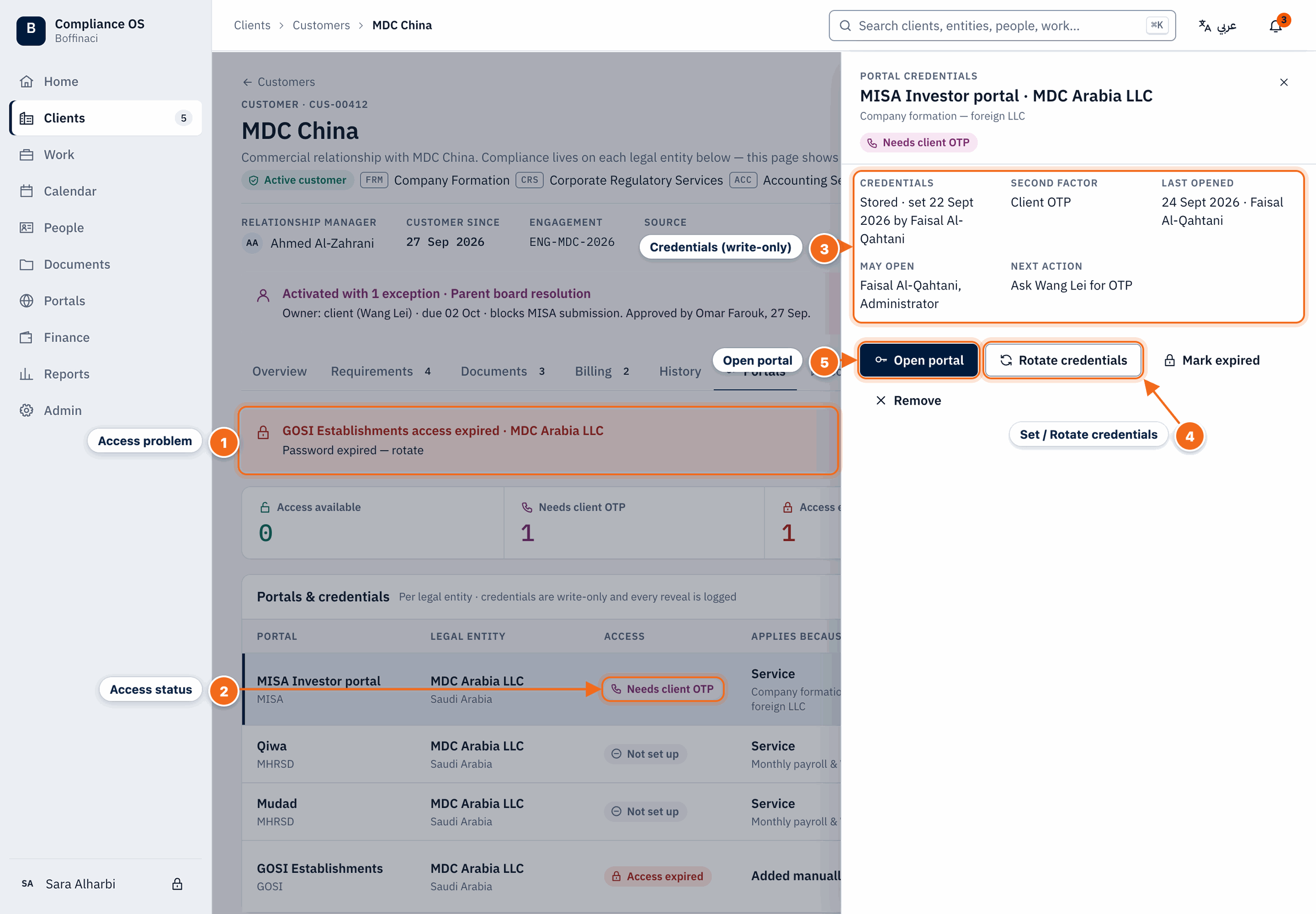
- Access problem: Portal access problems (expired password, missing delegation) are shown at the top of the tab.
- Access status: Each portal row shows its access status — available, needs client OTP, expired or not set up; click a row to open its details.
- Credentials (write-only): Shows only that credentials are stored, when and by whom — the password itself is never displayed.
- Set / Rotate credentials: Set credentials for a new portal or Rotate them when the password changes; values are sent once and never read back.
- Open portal: Opens the portal securely: you give a reason, confirm your identity, and the use is logged.
2. Set or rotate credentials
Click Set credentials (or Rotate), type the username and password, and choose who may open it. You may be asked to confirm it's you.
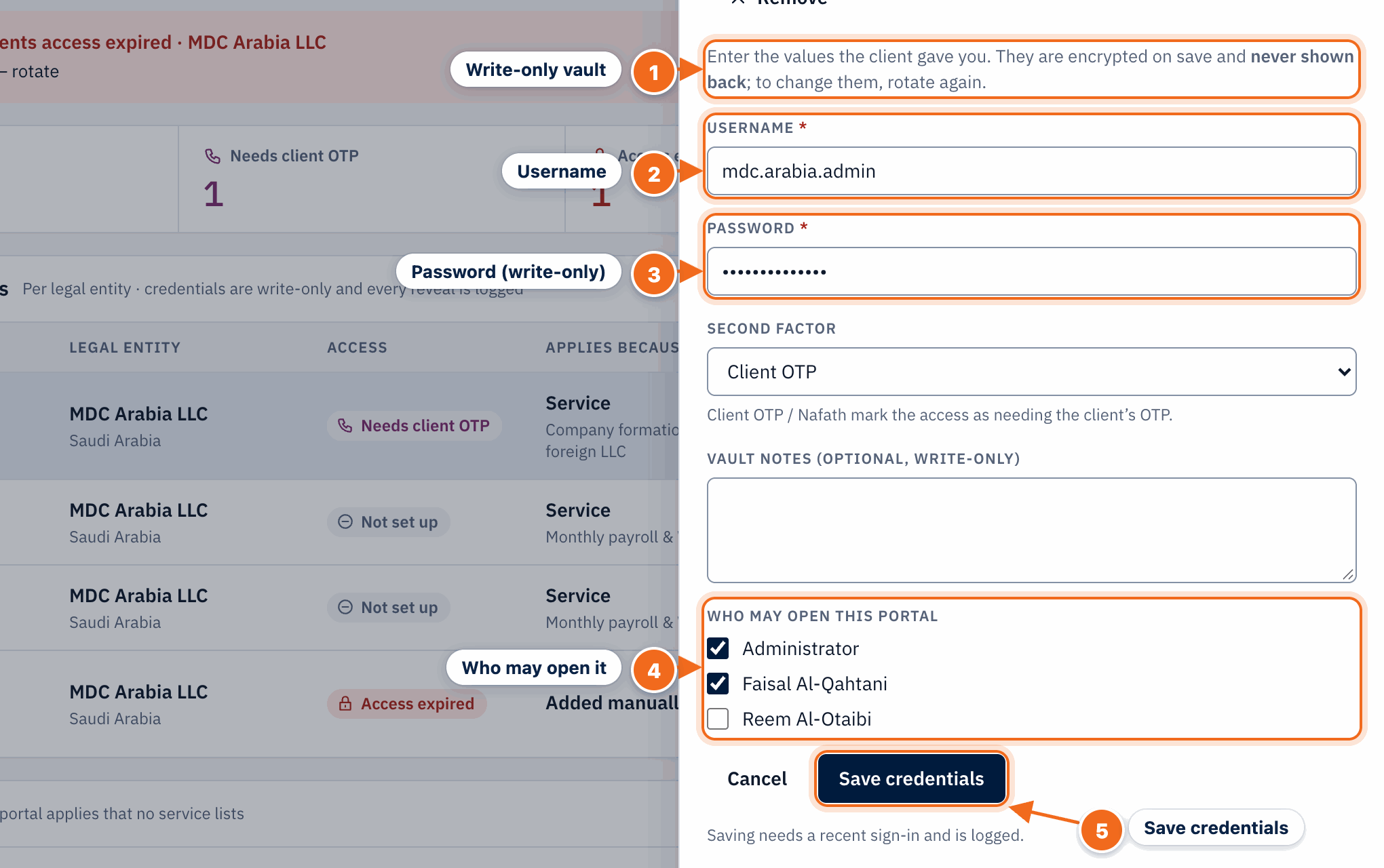
- Write-only vault: Values you enter are encrypted and never shown again — not even to you.
- Username: The portal username the client gave you.
- Password (write-only): The portal password; it is sent once and cannot be read back — use Open portal to reveal it briefly when needed.
- Who may open it: Choose which staff may open this portal; everyone else is refused.
- Save credentials: Saves the credentials; this needs a recent sign-in and is logged.
3. Open the portal
Click Open portal, pick a reason and confirm. The username and password are shown once, for 60 seconds. Copy them, open the portal tab, then click Done.
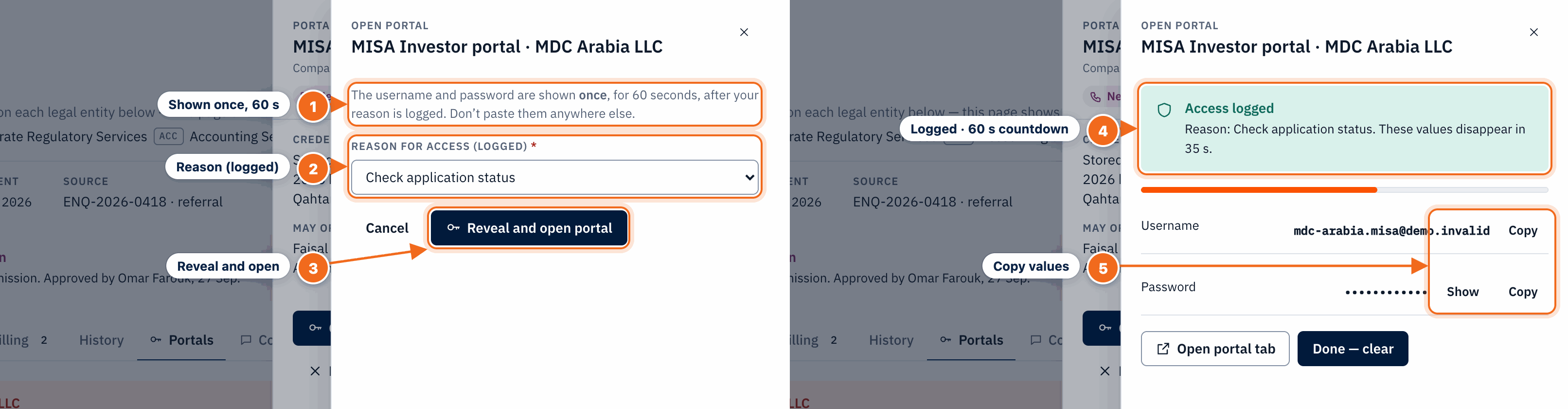
Two steps side by side: left = before reveal, right = after reveal (mock values).
- Shown once, 60 s: The username and password are revealed only once, for 60 seconds, after your reason is logged.
- Reason (logged): Pick why you need access (renewal, check status, download certificate…); the reason is written to the permanent access log.
- Reveal and open: Checks your permission (and asks you to confirm it's you if needed), logs the access and reveals the credentials.
- Logged · 60 s countdown: Confirms the access was logged with your reason and counts down until the values disappear.
- Copy values: Copy the username and password (or Show the password) and use Open portal tab to launch the portal; press Done — clear when finished.
4. Check access across clients
The Portals section shows access gaps and the log of who opened which portal, when and why.
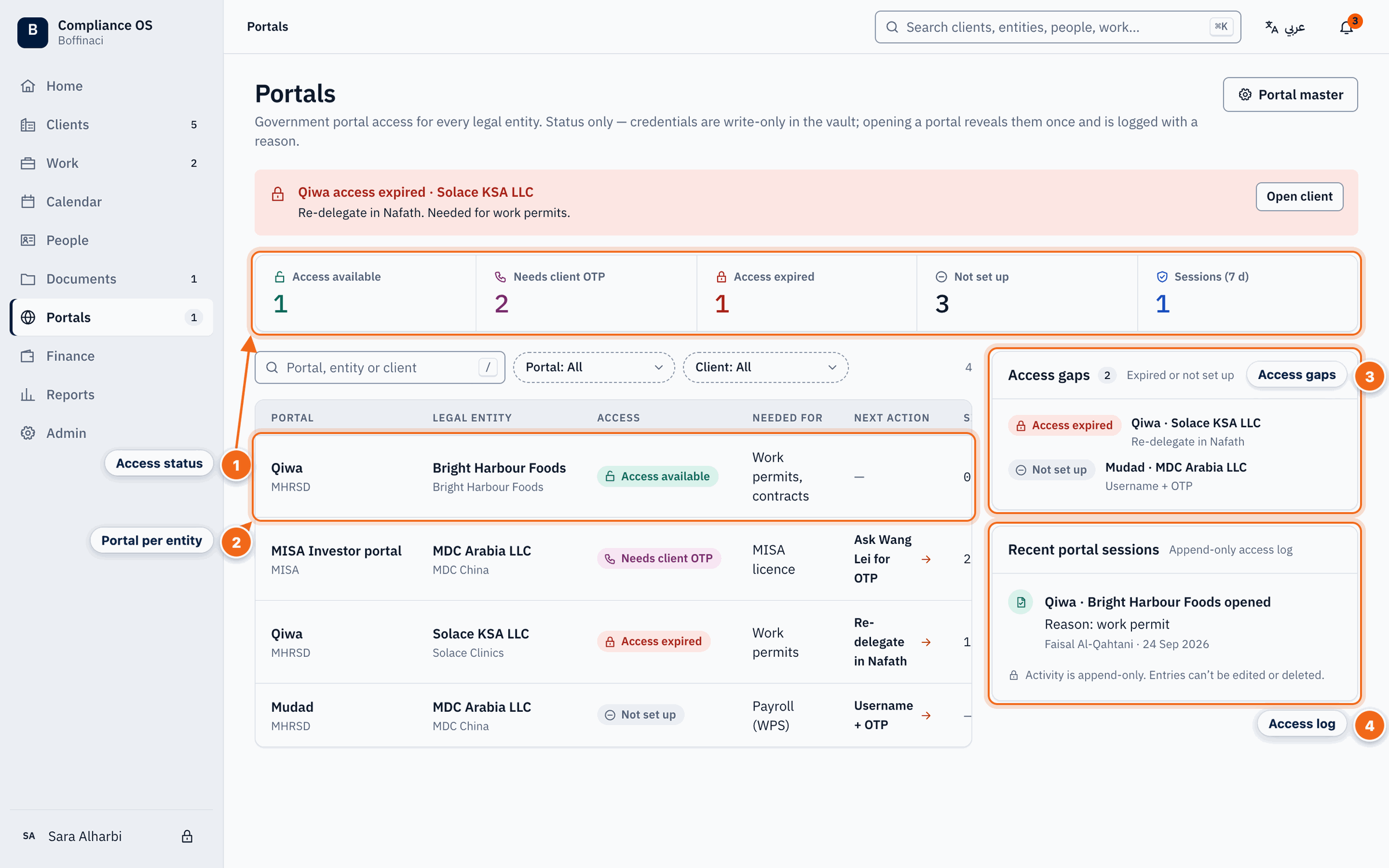
- Access status: How many entity portals have access available, need a client OTP, are expired or not set up, plus sessions in the last 7 days.
- Portal per entity: Each row is one portal for one legal entity, with its access status; open the client to manage credentials.
- Access gaps: Portals that are expired or not yet set up — fix these before work is blocked.
- Access log: The permanent log of who opened which portal, when and why.
Next: Finance and reports
No comments yet. Login to start a new discussion Start a new discussion