Start an onboarding
By Compliance OS on September 29, 2026
IntermediateConverting an enquiry opens its onboarding automatically. For a signed customer who never had an enquiry, start one directly.
1. Find onboardings in progress
Open Clients → Onboarding. Blocked onboardings are listed first.
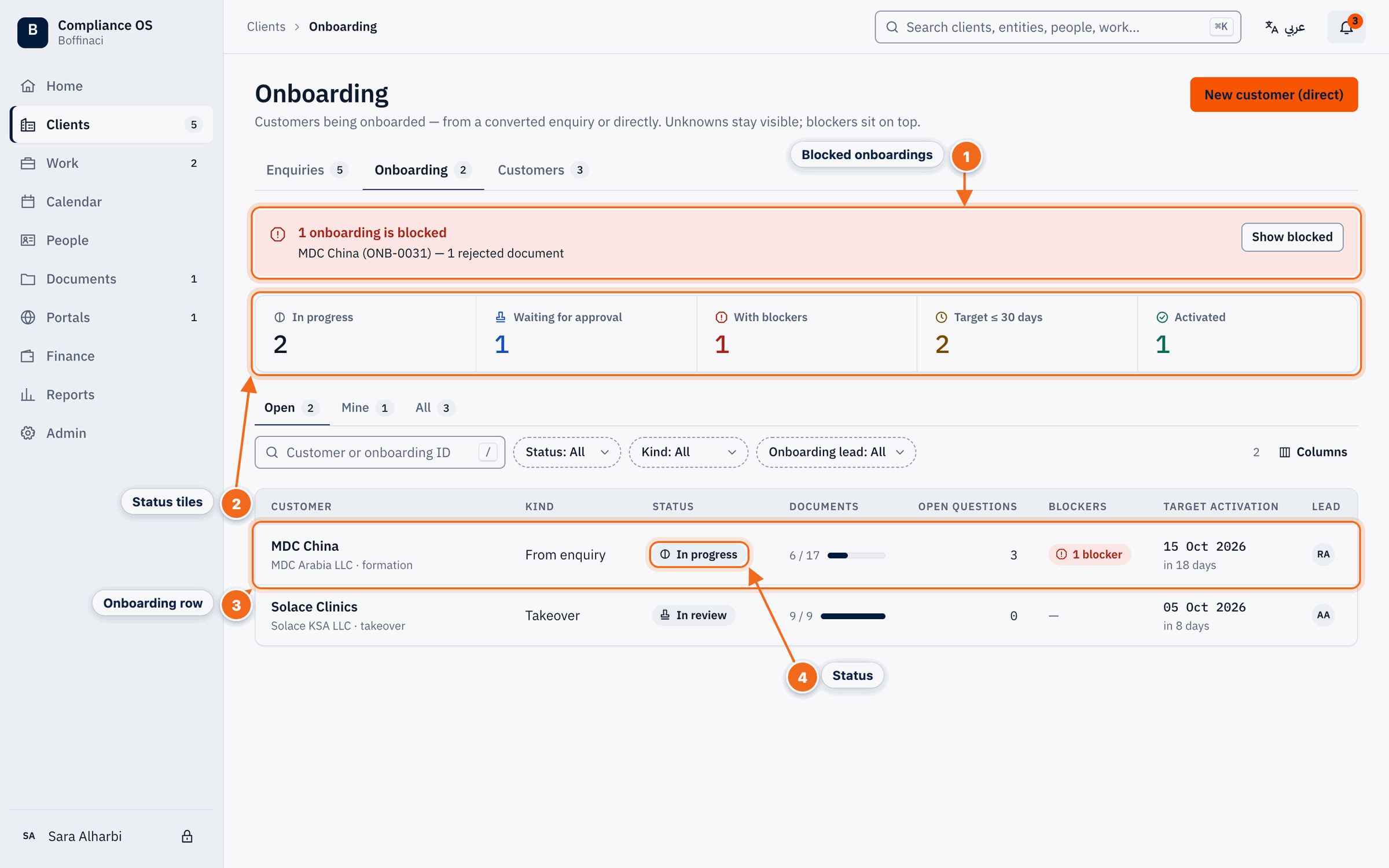
- Blocked onboardings: Blocked onboardings are called out at the top; Show blocked filters the list to them.
- Status tiles: Counts by status — in progress, waiting for approval, blocked, near target date, activated; click to filter.
- Onboarding row: Each onboarding shows its customer, progress, blockers, lead and target date; click to open the wizard.
- Status: The status badge tells you whether the onboarding is in progress, in review, valid (activated) or cancelled.
2. Start a direct onboarding
Click New customer (direct) and pick the situation that fits.
3. Look up the company
Enter the Commercial Registration (CR) number and click Look up. Check the details found.
4. Create and continue
Complete the checks for this situation, then click Create customer & start onboarding. The onboarding wizard opens.
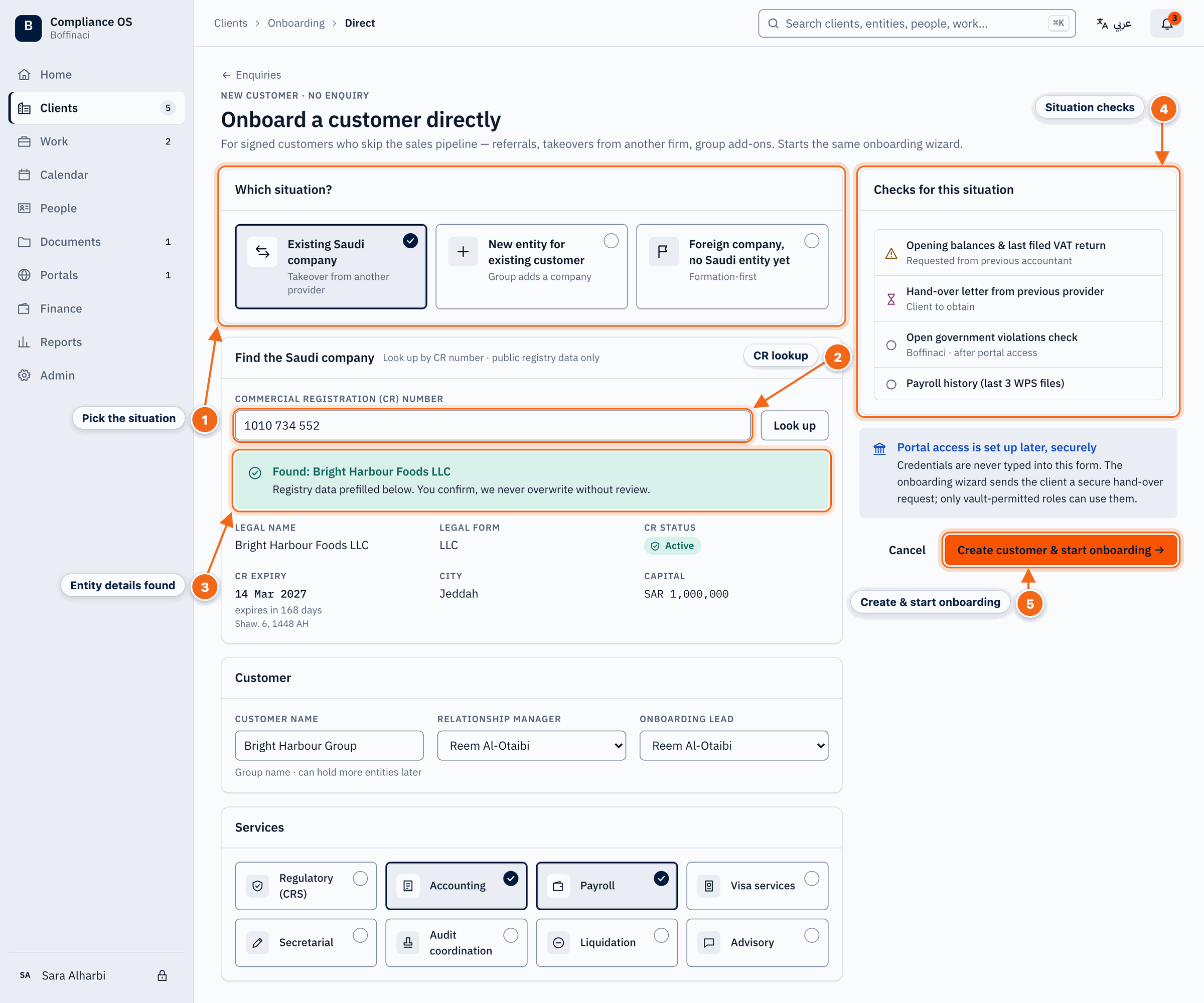
- Pick the situation: Choose whether this is an existing Saudi company taking over from another provider, a new entity for an existing customer, or a foreign company with no Saudi entity yet.
- CR lookup: Enter the Commercial Registration number and click Look up to pull the company's public registry data.
- Entity details found: Check the registry details that were found; they prefill the new legal entity.
- Situation checks: Extra checks that apply to this kind of onboarding, such as opening balances for a takeover.
- Create & start onboarding: Creates the customer and legal entity and opens the onboarding wizard.
Was this article helpful?
No comments yet. Login to start a new discussion Start a new discussion