Complete the onboarding wizard
By Compliance OS on September 29, 2026
IntermediateThe wizard collects everything needed to activate a customer. It has nine sections, and you can fill them in any order.
Before you start: the onboarding exists. It's created when you convert an enquiry or start a direct onboarding.
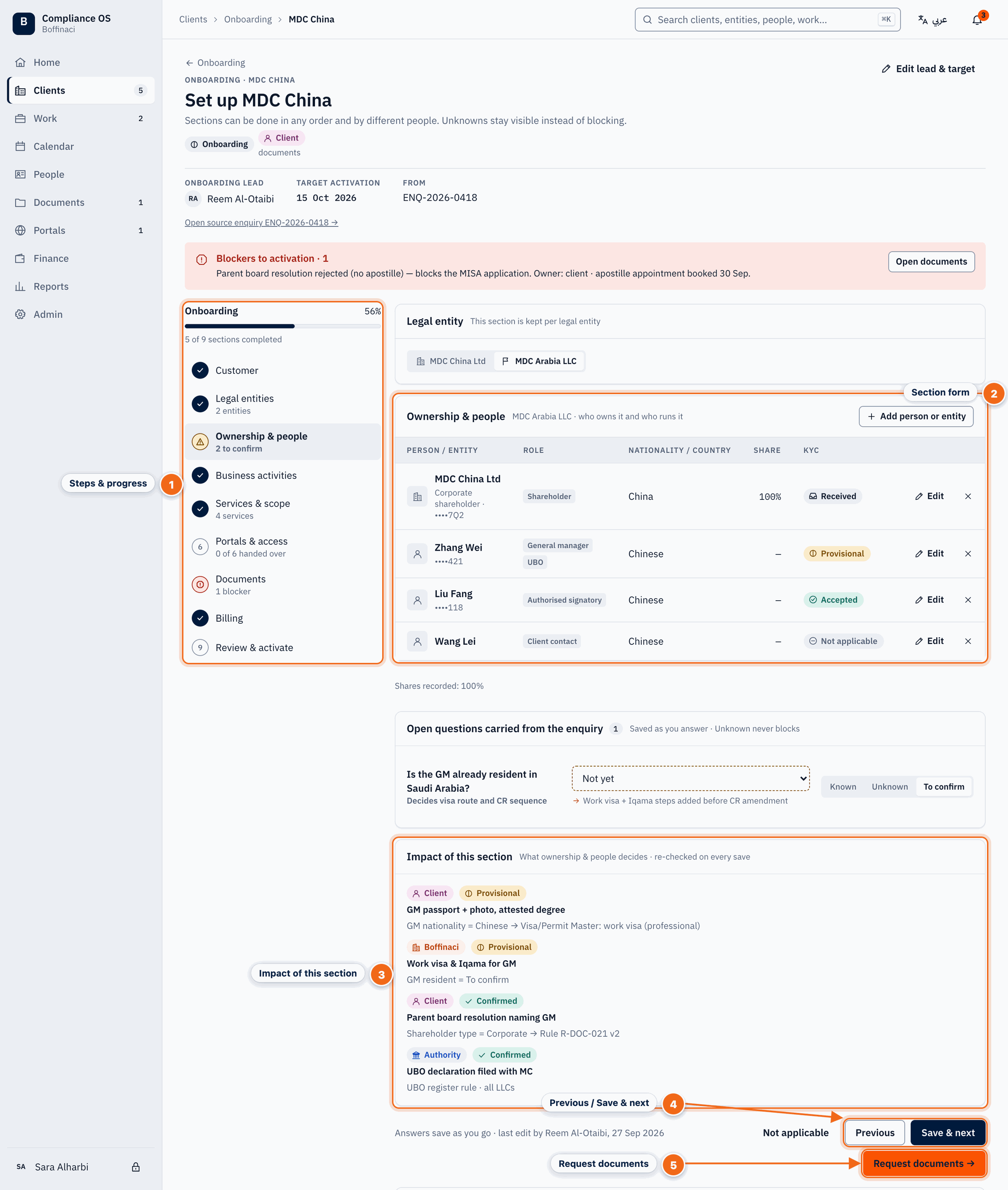
- Sections: The wizard's nine sections, from Customer to Review & activate; each shows its status, open questions or blockers.
- Blockers panel: Everything that blocks activation, always visible beside the wizard; Open documents jumps to the problem.
- Open questions: Questions still ‘To confirm’ from the enquiry; answer them here as Known, Unknown or To confirm.
- Section impact: The requirements this section drives, so you can see what each answer changes.
- Request documents: Save & next moves to the next section; Request documents sends the client the document request.
1. Move between sections
The sections are Customer, Legal entities, Ownership & people, Business activities, Services & scope, Portals & access, Documents, Billing, and Review & activate. Save & next and Previous save your changes. Progress reflects what's actually filled in.
2. Keep an eye on blockers and open questions
The blockers panel is always visible. Answer questions carried from the enquiry as Known, Unknown or To confirm. Impact of this section shows which requirements each section drives, and updates as you edit.
3. Customer and legal entities
Check the customer's details and each legal entity (country, legal form, CR).
4. Ownership and people
Add every shareholder, manager and signatory.
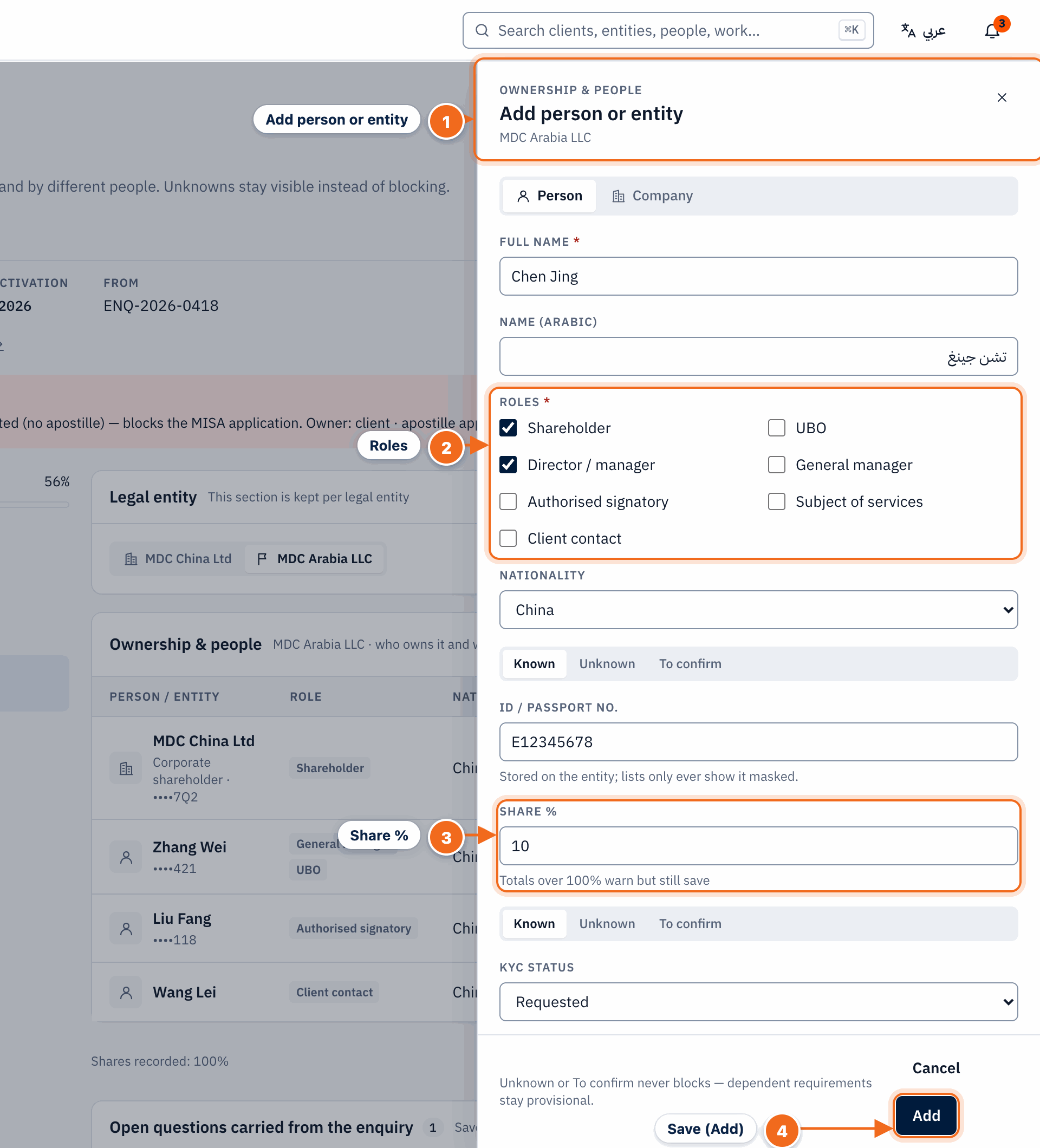
- Add person or entity: Adds a shareholder, manager or other party: a person or a company.
- Roles: Tick every role they hold, for example shareholder, general manager or authorised signatory.
- Share %: Their shareholding. The section warns you if the shares don't add up to 100%.
- Save: Saves the person straight away; the requirements for their role update.
5. Business activities, services and scope
Pick the activities, then add or remove services. Each service shows the version it's pinned to.
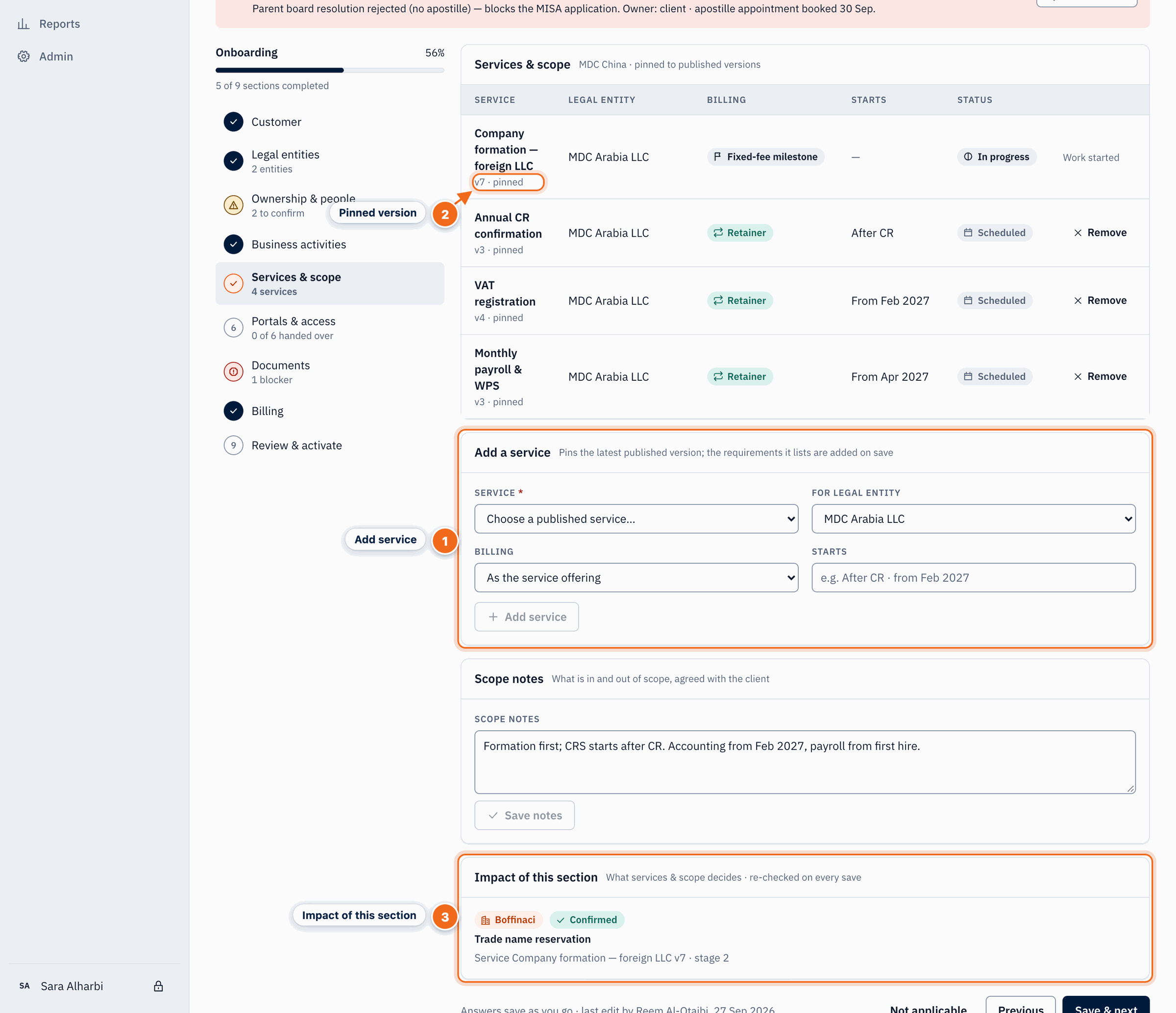
- Add service: Adds another service to this customer's engagement.
- Pinned version: The published version the service uses. It stays pinned until someone deliberately migrates it.
- Impact: The requirements, documents and fees this change adds or removes, recalculated as you edit.
6. Portals and access
Record which government portals apply. No passwords go here; credentials are saved later on Customer 360 → Portals.
7. Documents and billing
Click Request documents to send the client the list, then set up billing.
8. Review and activate
The last section takes you to activation checks.
No comments yet. Login to start a new discussion Start a new discussion