Activate a customer
By Compliance OS on September 29, 2026
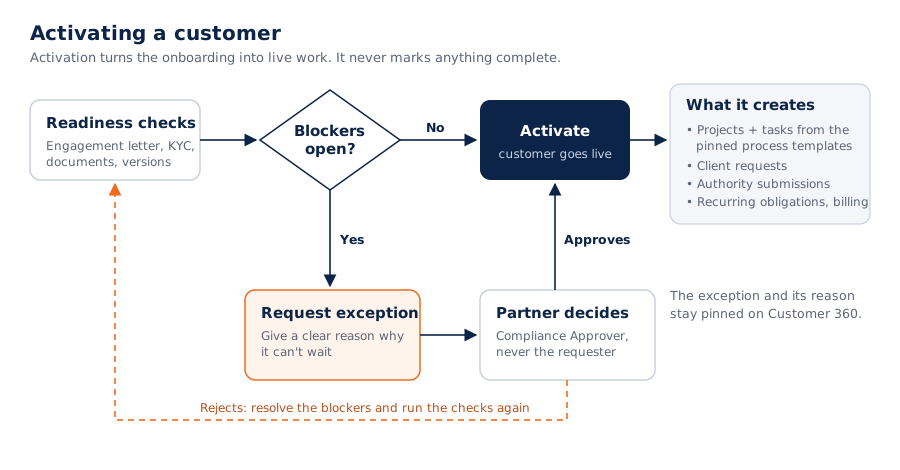
IntermediateActivation turns the onboarding into live work. It doesn't mark anything as complete.
Before you start: you can't approve an exception you requested. A partner (Compliance Approver) decides it.
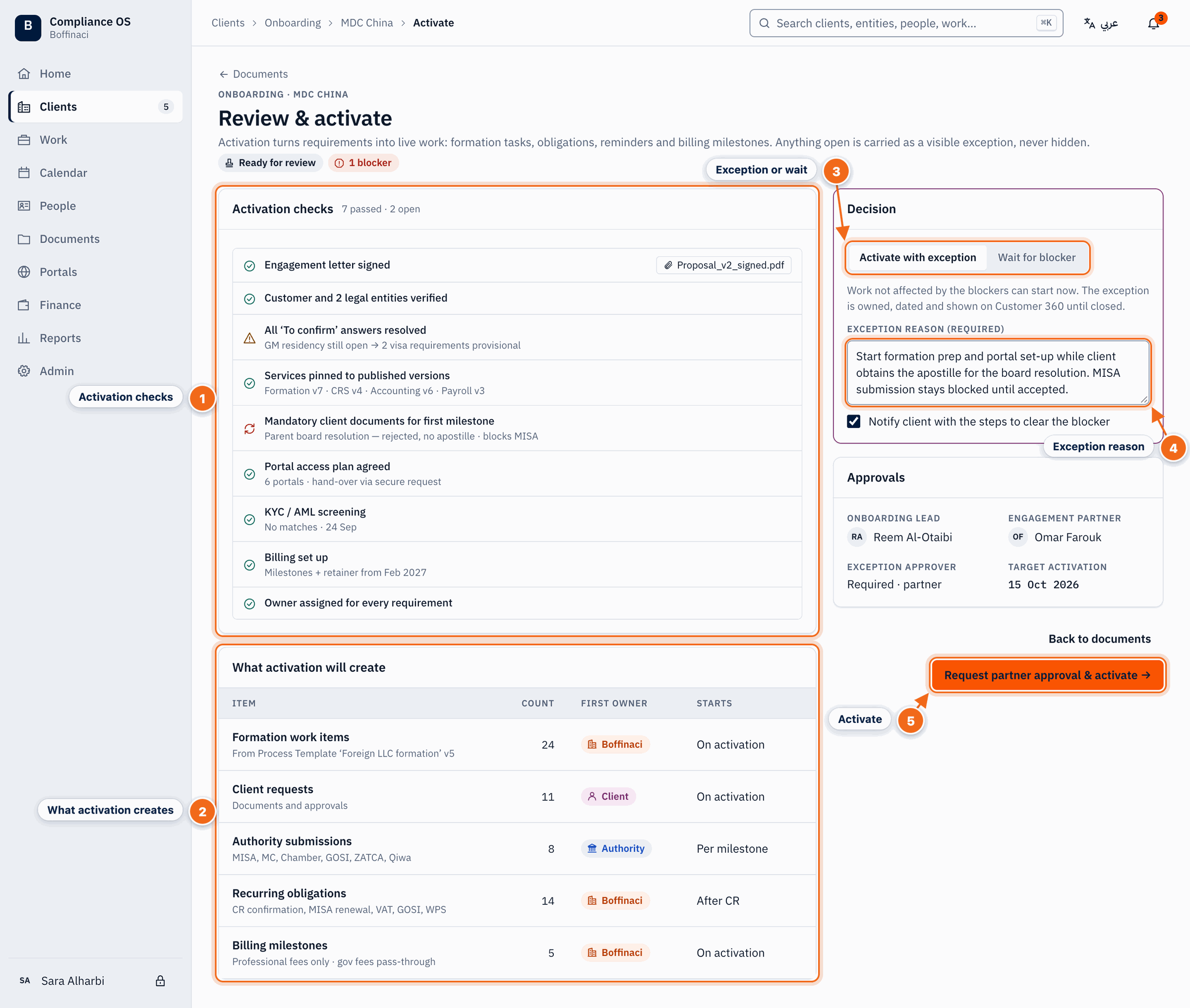
- Activation checks: Every check that must pass before activation — engagement letter, documents, portals, billing; open items are shown with their evidence.
- What activation creates: The customer records, recurring work and schedules that activation will create.
- Exception or wait: Choose to activate with an exception while a blocker is still open, or wait for the blocker to clear.
- Exception reason: An exception always needs a written reason; it is logged and goes to a partner for approval — you cannot approve your own exception.
- Activate: Requests partner approval and activates; without an exception, the button activates directly once all checks pass.
1. Open Review & activate
From the wizard's last section or the document collection, click Review & activate.
2. Read the checks
Every check shows its evidence. Open items link to what's missing.
3. See what activation creates
Projects and tasks come from the service's process template, at the pinned version. Recurring work and billing are set up too.
4. Activate
When all checks pass, click Activate.
5. Or activate with an exception
If a blocker can't wait, choose the exception, write a clear reason and submit. A partner approves or rejects it. If it's rejected, clear the blockers and try again. You can also Hold activation.
Was this article helpful?
No comments yet. Login to start a new discussion Start a new discussion